Interactive Question Template Setup Instructions
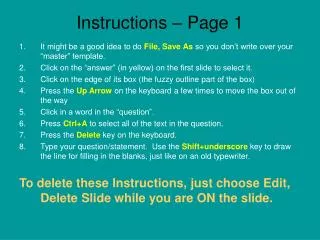
This guide provides step-by-step instructions for creating an engaging quiz or questionnaire. To preserve your master template, start by using "File" > "Save As." Use the provided yellow-highlighted section to input your answers. Follow prompts to delete existing text and enter your own questions and answers. Utilize keyboard shortcuts like Ctrl+A for selecting all text and Shift+underscore for fill-in-the-blank lines. Resize or move text boxes as needed. Deleting instructions is simply done via Edit > Delete Slide.

Interactive Question Template Setup Instructions
E N D
Presentation Transcript
Instructions – Page 1 • It might be a good idea to do File, Save As so you don’t write over your “master” template. • Click on the “answer” (in yellow) on the first slide to select it. • Click on the edge of its box (the fuzzy outline part of the box) • Press the Up Arrow on the keyboard a few times to move the box out of the way • Click in a word in the “question”. • Press Ctrl+A to select all of the text in the question. • Press the Delete key on the keyboard. • Type your question/statement. Use the Shift+underscore key to draw the line for filling in the blanks, just like on an old typewriter. • To delete these Instructions, just choose Edit, Delete Slide while you are ON the slide.
Instructions – Page 2 • Click on the “answer” (in yellow) to select it. • Press Ctrl+A to select all of the text in the answer box. • Press the Delete key on the keyboard. • Type the correct answer. • Click on the fuzzy outline on the edge of the box and drag it to where it needs to be. • Resize the box if necessary by placing the mouse over the “sizing handles” and dragging in the appropriate direction when you see the two-headed sizing arrow. • To delete these Instructions, just choose Edit, Delete Slide while you are ON the slide.
What • _______ is the answer to this first question?
Did you __________ the first few questions correctly? answer
Put Your Choice Here • I think that ______________________ is an excellent role model for teens.