Download
1 / 6
60 likes | 200 Views
The cASM HEAT Self-Service website is now accessible at www.tqsapps.com via the support link. Upon accessing the site, users will encounter the login screen where they can enter their cASM username and the password "heat." After logging in, the HOME screen displays current issues or outages under ‘Hot Issues’. Users can check their Ticket History for ongoing issues and details by clicking on the Call ID. To report a new issue, users can fill out the New Ticket form, located at the top left of the screen, and submit it for assistance.

E N D
Contingency Acquisition Support Model (cASM) HEAT Self Service Website
Launching HEAT Self Service Heat Self Service can be accessed through the cASM Support site, at www.tqsapps.com, and accessing the support link.
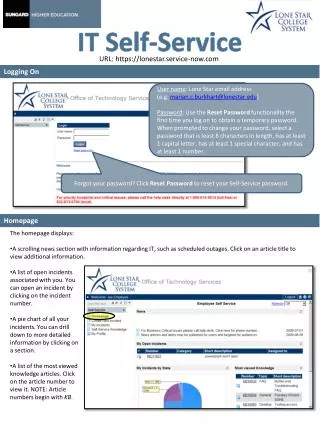
Login Screen You will be presented with the Login screen. Enter your cASM user name, with the password “heat”.
HEAT Self Service Home Page Upon login, the user will be shown the “HOME” screen. ‘Hot Issues’ will display any current issues or outages affecting the cASM.
Tickets History The Ticket History page shows all current issues for a User. For the details of an Issue, click on the Call ID number.
New Ticket Page The New Ticket # will be shown in the top left corner of the screen, this gives the user away to reference their ticket. Fill in the CallLog information, with enough detail to explain the issue. Once a user has completed the form, select submit.