Download
1 / 10
100 likes | 233 Views
This guide provides step-by-step instructions for accessing the SSLC main portal at Warwick University. To sign in, locate the "Sign In" option next to "Text Only" in the top right corner. After entering your username and password, you can navigate to your faculty and department pages. To upload files, click the "edit" link on your Minutes and Agendas page. Browse for your document, title it appropriately, and add relevant keywords for easier searchability. For assistance, contact Tim Sansom at Tim.Sansom@WarwickSu.com.

E N D
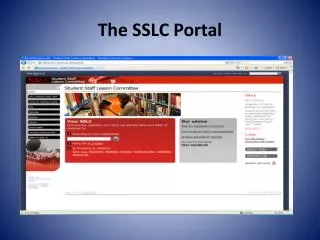
Access the SSLC main page http://www2.warwick.ac.uk/sunion/sslc
‘Sign In’ next to the ‘Text Only’ option towards the top right hand corner of the screen. Having entered your username and password, you will return back to the SSLC main portal page.
If the SSLC main page does not appear, you have not got permissions to edit the site. Please contact Tim Sansom at Tim.Sansom@WarwickSu.com
To upload files to your SSLC page, choose your ‘faculty,’ then ‘department’ pages from the menu to the left of the screen
Click on the ‘edit’ link on the right hand side of the page and click on ‘upload files’ to view this page.
Uploading your files Browse for the correct file on your hard drive and Insert The file details will appear in the neighbouring box Title the document “Agenda/ Minutes of DATE.” Click ‘Upload.’ Your file will be uploaded Add keywords (metadata) in this box so the document can be accessed by an internal search engine
After pressing ‘Upload.’ Your file will be uploaded and will appear on the ‘Minutes and Agendas’ screen New File
More Information • Sitebuilder Details • http://www2.warwick.ac.uk/services/its/servicessupport/web/sitebuilder2 • Academic Representation Coordinator • Tim.Sansom@WarwickSU.com