Download
1 / 1
10 likes | 131 Views
This guide provides step-by-step instructions on how to register for a free BrainBench account and take certification tests. Start by visiting www.brainbench.com, then click on "Individual Certification" and access the "Register/Logon" link. After registering, you can log in anytime using your credentials. Navigate to the "Test Center" and select the test you want to take. Optionally, enter your promo code (fbla2012 for FBLA, pbl2012 for PBL, or pd2012 for Professionals) before clicking "Get Test" to start.

E N D
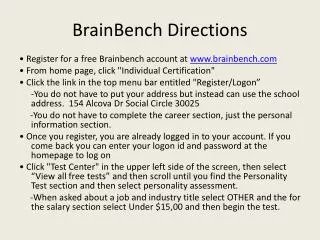
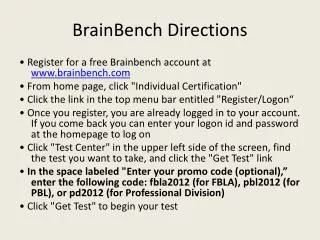
BrainBench Directions • Register for a free Brainbench account at www.brainbench.com • From home page, click "Individual Certification" • Click the link in the top menu bar entitled "Register/Logon“ • Once you register, you are already logged in to your account. If you come back you can enter your logon id and password at the homepage to log on • Click "Test Center" in the upper left side of the screen, find the test you want to take, and click the "Get Test" link • In the space labeled "Enter your promo code (optional),” enter the following code: fbla2012 (for FBLA), pbl2012 (for PBL), or pd2012 (for Professional Division) • Click "Get Test" to begin your test