Download

1 / 17
190 likes | 318 Views
Discover how to use Nvu, a free WYSIWYG web design tool ideal for beginners. This guide covers installation for both PC and Mac, setting up FTP for publishing, and tips for organizing your webpages. Learn how to format text, create links, and work with images, as well as essential layout strategies for your site. We also provide helpful resources and troubleshooting tips. Whether you're creating a personal site or a portfolio, this guide will set you on the right path to effective web design with Nvu.

E N D
Introduction to Nvu Jing Fu
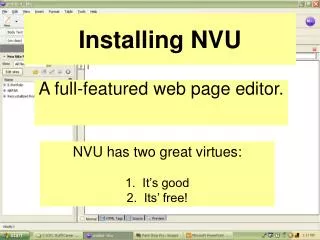
What is nVu? • Free web design and development tool • WYSIWYG (/wiziwig/) software • Other similar tools: Dreamweaver, Googlepages
How to install Nvu • Free download http://nvudev.com/download.php • PC User nvu-1.0-win32-installer-full.exe • Mac User nvu-1.0-mac.dmg Bug: After installation, please drag the file to “Application”.
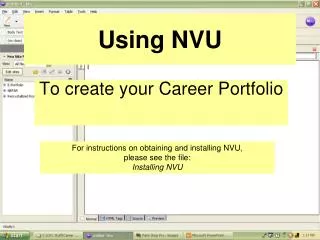
How to set up FTP Info on Nvu • Make sure you have Nvu up and running. • Edit ==> Publishing Site Settings ==>New Site • Enter your information: Site Name : What ever you want your site to be called HTTP address of your home page : You may leave it blank. Publishing address: ftp://afs.msu.edu/web User name: NetID Password: ****** Check SAVE PASSWORD • Hit OK
How to set up FTP Info on Nvu • Test your publishing site setting by enter some text anywhere in on the screen. • File ==> Save As • If it asks you to enter a title, just type in 'testing'. • Save it to your Desktop and name it - test (.html). • Hit Publish Button in Nvu. • Test to see that it upload correctly: www.msu.edu/~MSUNetID/test.html • Do you see the text you wrote? • Organize your webpages and files. Create a folder on Desktop / My document. Name it whatever you want Make sure you put all the files for your site in that folder.
Tips for Layout • HEADER On the top • NAVIGATION Top or Left Simple text Graphic rollover image • CONTENT In the middle
Getting started… • Options Table, CSS, Flash site, etc.
Getting Started • Table ==> 1 x 1 table • Select the table ==>Table ==>Table Properties • Edit table properties: Width: 100% Border: 0 (zero) Background color • Go back and look at your screen • Insert Header (text or images)
Getting Started… • Essentially repeat the process to create Navigation and Content • Move the mouse directly under the table • Click Table ==> Insert ==> 1 x 2 (one row, 2 columns). • Move mouse between the two tables • Left click the mouse button. • Hit Delete (to make the two tables flush up together) • Edit the table (PRACTICE IT ON YOUR OWN LAPTOP)
How to format text in Nvu • General Text Format: Text Bar on the top of the Window • Choose the desired color: The colors in the box on the right are considered web safe colors. • Other formats: Font size; Bold, Italic and Underlined; Bullets; Numeric indentation; Alignment; Font • Check Spelling
How to Create Links and Navigation in Nvu ATTENTION: Home page ALWAYS starts with index. It will either be index.htm, or index.html. (default.html, default.htm)* • Highlight the text • Click Link Hyperlink; Certain Place within the webpage;email; Files (audio, video, doc, pdf, etc.) i.e. http://www.msu.edu/~MSUNetID/test.html http://www.msu.edu/~MSUNetID/index.html • Window options
How to Work with Images in Nvu • Insert image: Image icon at the top • Choose File ==>pick the image After choosing the file, you'll see a preview of the image. • Enter alternate text: description of the image. • Edit the picture Tabs on the top of the window Drag it with mouse • Make the image a link Image ==> Link Boarders
How to Publish Webpages • Create a folder on your desktop • After working on a page, Save the page. Make sure that the page is saved to your working folder. • Publish ==>Page title
Practice • Set up Nvu Site Manager with your AFS space • Make a homepage (index.html) • Header New background color; Any text you want • Navigation four links: your e-mail address; MSU Homepage; .doc file, your test.html 3. Content Insert a picture, and a short bio
Resources • Free Image editor GIMP (software) http://www.gimp.org/downloads/ Online Image Editor http://bighugelabs.com/flickr/ • Layout Design http://www.cs.brown.edu/cgi-bin/colorcomb • Previous interns’ websites http://www.msu.edu/course/te/407/FS05Sec3/te407/stud_websites.htm
Questions for You…. • How many pages will you need? • What pages do you want to have in the site? • What kind of Header and any images or pictures you want to add?
Contact • Jing Fu Email: jingfu@msu.edu Office: 118 U, Erickson Hall