Download
1 / 26
290 likes | 417 Views
Learn how to create and manage a new database in MS Access with this detailed guide. Discover how to set up a new database, create and design tables, and understand various access objects like forms and reports. This guide covers everything from basic query creation to utilizing advanced query functions such as joins and aggregates. You will also explore the importance of primary and composite keys, how to import/export data, and utilize ODBC for database connectivity. Perfect for beginners and intermediate users alike.

E N D
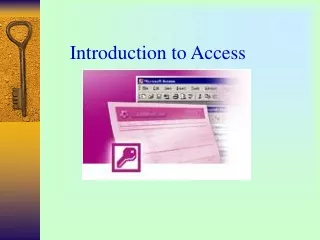
Introduction to Access BUS 782
Creating a New Database • MS Office button/New • Blank database • New database name and location
Access Objects • Tables • Create a new table: Create/Table Design • Open a table: • Double click the table name • Home/View: • Datasheet view • Design view • Queries • Create a new query: Create/Query Design • Others: Forms, Reports, Pages
Creating a Table • Create/Table Design: • Field name • Field data type • Create table by using table templates • Create/Table Templates/select template • Create a primary key • Never let Access to create a primary key for you. • How to create a composite key? • Enter data
Create a new Query • Create/Query design/Show table • Select fields • Add criteria • Sorting • Total and subtotal • Query design tools/Total • A Total row is added to the design view • Select function from the total row’s dropdown list
Creating a New Form • Using Form Wizard • Create/More Forms/Form Wizard
Basic Query Language Operations • Selection • Projection • Join • Aggregates: Max, Min, Sum, Avg, Count • Totals and SubTotals • GroupBy • Calculated fields
Selection • Selection operation retrieves records that satisfy user’s criteria.
Projection • Projection operation defines a vertical subset of a table and retrieves only the specified fields.
Join • The two tables must have common attributes: • Key and foreign key. • Combines two tables to form a new table where records of the two tables are combined if the common attributes have the same value.
Join Example • Faculty File: • FID Fname • F1 Chao • F2 Smith • F5 Boxer • Student File: • SID Sname FID • S1 Peter F1 • S2 Paul F2 • S3 Smith F1 • Faculty Join Student =
Join Example • StudentCourse File: • SID CID • S1 ISYS263 • S1 Acct101 • S3 ISYS363 • S2 ISYS263 • S2 Fin350 • S2 Acct101 • Student File: • SID Sname FID • S1 Peter F1 • S2 Paul F2 • S3 Smith F1 • Course File: • CID Cname Units • ISYS263 IS Intro 3 • ISYS363 MIS Intro 3 • Acct101 accounting 3 • Fin350 Finance Intro 3 (Student Join StudentCourse) Join Course
Aggregate Functions • Max, Min, Sum, Count, Avg • QueryTools/Totals • Ex. Student: SID,Sname, GPA, Sex, Major • How many students in this University? • What is the overall average GPA?
Aggregates by Group • How many students in each major? • Compare male students and female students average GPA.
Examples • Customer: CID, Cname, City, Rating • Orders: OID, Odate, SalesPerson, CID • Queries: • Find customers live in San Francisco. • Produce a customer report that shows CID, Cname, and Rating. • Number of customers in each city • City, NumbeOfCustomers • Produce a report that shows the number of orders for each customer: • CID, Cname, TotalNumberOfOrders
ERD Notations Major Sname SID Balance SID 1 1 Student Has Account M M M Enroll Advise Grade 1 M Faculty M Teach Course Units Phone FID Fname CID Cname
Examples • Q1: Display students’ ID, name and account balance who owe university more than $2000. • Q2: Display student’s ID, name and total units. • Q3: Find students taking at least 9 units and display their ID, Name and total units. • Q4: Display CID, Cname, SID, Sname • Q5: Display CID, Cname, number of students in each course. • Q6: Display faculty’s name and phone if the faculty advises at least three students.
Order Processing Database Examples • Order Processing Database: • Customer, Orders, OrderDetail, Product • MIS report • Total amount for each order • Criteria applied to subtotal
Calculated Fields • Rename a field: • NewName:OldName • Define a calculated field: • Tax:salary*.15 • Age:Year(Now()) – Year(DOB) • IIF function
Criteria • >, >=, <, <=, =, <> • Range: BETWEEN 1/1/03 AND 12/31/03 • Wildcard: • ? – match any one character • “K?NG” • * - Match any number of characters • “C*”
Sorting • One field sorting • Two fields sorting
Other Queries • Update query: • Query tools/Design/Query type/Update • Delete query • Parameter query • CrossTab query • Crosstab row
Access Tools for Import/Export • Import from Excel: • The first row of Excel’s list should contain field names • External Data/Import/Excel • Export to Excel: • External Data/Export/Excel
Open Database Connectivity (ODBC) • Provide a standard to retrieve data from a database. • It manages one or more "database drivers“ that enables the communication between database and applications. • To access a database, we use ODBC facilities to define a ODBC data source name for the database.