iPad Training
Dive into the essential features of your iPad with this detailed training guide by Dora Ibelli. Discover the hardware components, including the multi-touch screen, buttons, and camera, along with practical tips for using gestures and the home screen effectively. Learn how to connect to Wi-Fi, copy and paste text, and navigate popular apps like Pages, Keynote, and iMovie. This guide is designed to help users, regardless of experience, become proficient with their iPad devices. Unlock the potential of your iPad and enhance your digital skills today!

iPad Training
E N D
Presentation Transcript
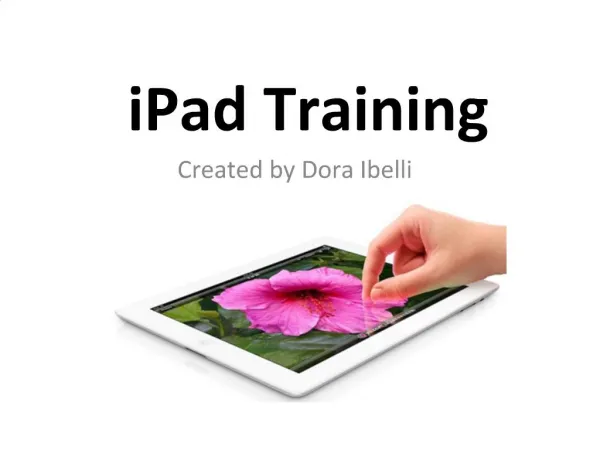
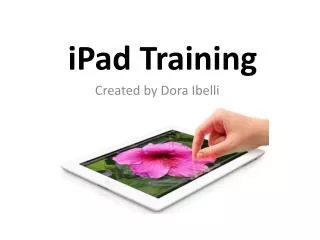
iPad Training Created by Dora Ibelli
HARDWARE • FRONT • Front-Facing Hardware • Multi-Touch Screen • Home Screen • Home Button • REAR/SIDE • Headphone Jack • Sleep/Wake Button • Rear Facing Camera • Side Switch • Volume Button • Speaker • Dock Connector
BUTTONS • Home Button • Return to home screen • Open a search • Open the Multitask Bar • Sleep/Wake Button • Lock/Unlock • Power On/Off • Volume Button • Adjust Volume • Mute Volume • Side Switch/Button • Mute or Lock Rotation
HOME SCREEN • Status Bar • Wi-Fi Connection • Battery Life • Locked • Airplane mode • App Icons • Tap to open • Home Screen Indicator • Multiple home screens • App Dock • Up to 6 apps
GESTURES • Tap • Open an app • Follow a hyperlink • Open keyboard/enter text • Drag • Scroll • Move between screens • Use sliders (power on/off) • Flick • Scroll • Pinch Zoom • 4-5 Finger Swipes • Vertical/Horizontal • Switch between all open apps • 4-5 Pinch • Inward-return to home screen • Outward-activate multitask bar
ON-SCREEN KEYBOARD • Insert Numbers & Punctuation • Tap the keys • Hide Keyboard • Tap once • Split Keyboard • Tap & hold hide keyboard key • Insert Accented Characters • Tap & hold each character • Enable International Keyboards • Settings-General-Keyboard/International • View International Keyboards • English • French • Spanish • Etc.
COPY & PASTE • Select Text • Tap and hold over a word until highlighted. • Copy Text • Select text and then tap “copy”. • Paste Text • Tap and hold where you would like to paste text and then select “paste”.
Wi-Fi/Networking • Wi-Fi Network • Settings, Wi-Fi, Set to “On”, select Wi-Fi Network, enter password if necessary. • 3G or 4G Network • Not available • Airplane Mode • Settings, set airplane mode to “On” or “Off”
Connecting/Displaying • VGA adapter • Splashtop Remote Desktop • Apple TV
Printing • Click on the Notes app. • Create a note. • Select the arrow/print/select a printer. CAUTION: Make sure you know where you are sending the job!
Viewing Flash Sites • Flash is not enabled through Safari. • Must use a 3rd party app to view flash sites. • Click on Photon Flash Browser • Open www.alpineschool.org
Gmail • Log into your new Gmail account and reset your password (old password: Alpine$1) • E-mail addresses are the same as before e.g. ibelli@alpineschool.org • Utilize the app to send and retrieve e-mails.
Passcode/Security • Go to Settings—Passcode Lock—Enter a 4 digit passcode. • E-mail me your passcode ibelli@alpineschool.org
Pages • Pages lets you create letters, reports, flyers, etc. • Open Pages to begin the tutorial.
Keynote • Keynote allow you to create, deliver, and share presentations. • Open Keynote to begin the tutorial.
Numbers • Numbers lets you design spreadsheets and create graphs. • Open Numbers to begin the tutorial.
iPhoto • Use iPhoto to edit and enhance photographs. • Take a few photos with your iPad. • Click on a photo. • Select the ? to learn about iPhoto.
iMovie • Use iMovie to create a trailer or a movie project. • Select iMovie. • Select New Trailer. • Preview the templates.
Purchase/Order Apps • Must complete form. • Submit it to the App Committee. • Committee will preview & approve/deny. Free Apps do not need to be reviewed, just e-mail me.
Questions/iPad Blog • www.alpineschool.org • Go to--Classrooms--Ms. Ibelli--iPad Blog • Add Comments/Questions/Apps