Blackboard 9 Update: New Features and Tools for Enhanced Course Management
90 likes | 183 Views
Discover the latest enhancements in Blackboard 9, including a modern interface, improved course management workflow, collaborative tools, Grade Center tips, and assignment management features. Learn how to optimize your teaching experience and engage students effectively with these new tools.


Blackboard 9 Update: New Features and Tools for Enhanced Course Management
E N D
Presentation Transcript
Blackboard 9 What’s New Marly Miller • BCT • CST ACB 238 • 8/17/09
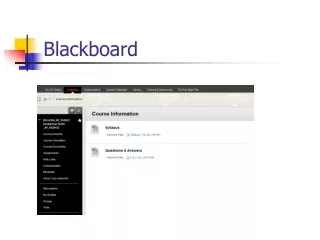
What’s New? • Modern, USC-based interface • New course home page • Improved course management workflow: • Edit Mode • - Web 2.0 • “Action Links” – • look here first! • Folder markings – hidden + no content • The Control Panel is always visible: • work in the CP, not in the folders above
What’s New? • New layout in content areas folders: TRIP UP: The button that makes the course menu disappear
What’s New? • New collaborative tools: • - Blog - Journal - Self & Peer Assessment • Automatic update notification – changes emailed nightly • courses tab > notifications dashboard • The new “Grade Center” • Suggested handout:“Significant Changes, Fixes, and Improvements in Blackboard 9”Suggested movie:“What's new and what's different in Blackboard 9”
Grade Center • More about the Grade Center: • a. Inputting grades • b. Column Organizationmanage > column organization • c. How to show and not show certain parts of the grade bookhide columns deactivate “My Grades” • d.TRIP UP: Fixed column widthsShorten it: click column’s action link > edit column information • Suggested handouts:Several from the “Posting Student Grades to Blackboard” sectionSuggested movies:1. “Using the Grade Center”
Grade Center Collecting, reviewing, and returning assignments: a. Digital Drop Box Assignment Tool The drop box is now the assignment tool You can: 1) batch download papers 2) allow multiple attempts 3) review assignments offline & return them into Grade Center: grade center > > > view grade details > open attempt Suggested handouts:1. “Using the Digital Drop Box”2. “Creating Assignments”3. “Entering Students’ Grades and Returning Students’ Graded Assignments”
Other Items Course set-up: a. Importing information from old class areas from the course to move: course copy > destination course ID copy everything! then delete items b. Adding names of instructorsusers & groups > users > 1. see roster: % 2. enroll users > browse Suggested handout:“Copying Course Content from One Course to Another”
Q & A Do you have any comments or questions?
Contact Thank you for attending! If you have comments or questions about Blackboard, please contact USC Customer Support: x05555 blackboard@usc.edu Find our How-To Movies and Guides at http://blackboard.usc.edu