CCW (1)
ud83dude80 Sharing a helpful quick-reference guide for automation engineers working with Allen-Bradley Micro800 PLCs.<br><br>This guide walks you through:<br> u2022 u2705 Creating a new CCW project<br> u2022 ud83dudd0c Connecting the Micro800 controller<br> u2022 ud83dudd27 Setting up firmware & communication paths<br> u2022 ud83dudcca Configuring I/O, modules, and key controller settings<br><br>Itu2019s useful for commissioning, troubleshooting, and training team members who work with Micro810, Micro820, Micro830, Micro850 or Micro870 controllers. <br><br>A simple resource that helps avoid common connection issues and saves time on the shop floor.<br>ud83dudce5 Feel free to download it,

CCW (1)
E N D
Presentation Transcript
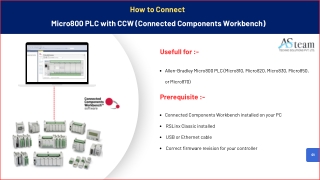
How to Connect Micro800 PLC with CCW (Connected Components Workbench) Usefull for :- Allen-Bradley Micro800 PLC (Micro810, Micro820, Micro830, Micro850, or Micro870) Prerequisite :- Connected Components Workbench installed on your PC RSLinx Classic installed USB or Ethernet cable Correct firmware revision for your controller 01
Connected Components Workbench New Project Step 1 - Create a new CCW project by clicking on “New”. Action: Open Connected Components Workbench. Click "New" on the start page to create a new project. Purpose: This opens a blank CCW project where you will add the Micro800 controller. 02 Connected Components Workbench - Creating a New Project
Connected Components Workbench New Project Enter a project name and choose the file location where it will be saved. Click "Create" to continue. 03 Connected Components Workbench - Project Name and File Location
Choose the correct Micro800 controller model from the list. Important: Select the firmware revision installed in your PLC. The firmware version must match your PLC. Click “Select” and then “Add to Project.” If versions mismatch, CCW may not allow downloads or communication. 04
Connect to the PLC Action: Click the “Disconnected” status to open the communications window. Browse for the controller using RSLinx Classic. Select your Micro800 from the tree and click “OK.” Result: The status changes to Online, meaning CCW is now communicating with the PLC. 05
Adding Plug-In and Expansion Modules Action: Disconnect from the controller before adding new modules. Open I/O Configuration. Right-click on Plug-in Modules or Expansion Modules and select the module you need. Purpose: This allows CCW to build the correct hardware configuration for your PLC. 06
General Shows basic controller information such as name, model, firmware, and project details. Use this page to verify controller identity 07
Memory Displays available program memory and data memory. Useful for monitoring resource consumption in larger applications. 08
Startup/Faults Configure how the controller behaves on power-up and after a fault. Common options: Start in Run mode 09 Start in Program mode Restart or hold on fault
Serial Port Set baud rate, stop bits, parity, and protocol (Modbus RTU if used). Ensure the device connected uses the same settings. 10
USB Port Shows USB communication settings for programming via the USB port. Used primarily for quick setup and local programming. 11
Configure IP Address, Subnet Mask, Gateway, and Protocols. Ethernet Your PC and PLC must be in the same IP subnet for Ethernet communication. 12
Real time Clock Set date and time for the controller. Required for data logging, recipes, or time-based functions. 13
Embedded I/O View and configure the built-in digital and analog I/O channels. Displays default addressing for each I/O point. 15
Data Log Configure logging of tags or variables at defined intervals. Data can be saved for diagnostics or trend monitoring. 17
Recipe Create and manage parameter sets used in batch or product-based processes. Useful for machine setups requiring multiple product configurations. 18
Axis1 Used for simple motion or positioning applications. Configure scaling, speed, acceleration, and axis mapping. 19
Plug-in Modules Displays plug-in modules directly mounted on the controller. Configure parameters related to the specific plug-in module. 20
Example Module >> 2085-IF4 (Analog Input) For this analog input module, configure: Channel type (Voltage / Current) Input ranges Filtering Scaling options Purpose: Ensures accurate analog signal reading. 22
www.asteamtechno.com Asteam Techno Solutions Pvt Ltd +91 95378 40404 410- Apple Square, Yogi Chowk, Nana Varachha, Surat, Gujarat, India -395006