ENTERING GRADES ON PINNACLE
This guide provides detailed instructions on how to enter grades using the Pinnacle system. Start by logging in with your username and password, which are the last four digits of your employee number. Follow steps to select your class, define grades, add assignments, and update your roster as needed. The process also covers how to save and close the gradebook. If you encounter any issues, instructions for contacting support are included. Ensure your grading tasks are completed efficiently with this comprehensive ITS Technology Training resource.


ENTERING GRADES ON PINNACLE
E N D
Presentation Transcript
ENTERING GRADES ON PINNACLE ITS Technology Training
Your username and password are BOTH last four numbers of your employee number. You may be prompted to change it. You can keep it the number if you wish. ITS Technology Training
Select the class you wish to open. Click Open ITS Technology Training
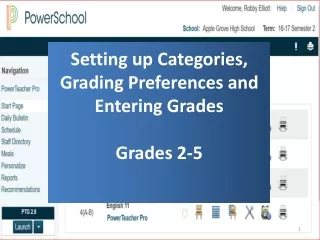
To enter grades. Click on Define Click on Grades ITS Technology Training
Click Add ITS Technology Training
Give the grade a name (Test one, Quiz 2, etc) ITS Technology Training
Set the value of the assignment If you have more grades to add, click Add again If you are finished adding grades, click OK ITS Technology Training
Click OK again ITS Technology Training
The assignments should show at the top of the columns. ITS Technology Training
If there are new students in your class or students have been removed. • Click Pinnacle • Select Update Roster Updating your Roster If changes have been made to the AS/400, they should be reflected in the update ITS Technology Training
When you are finished with the grade book, Click the Close icon ITS Technology Training
Click Yes ITS Technology Training
As the program saves, it sends the grade information to the main server. ITS Technology Training
To open another class Click the Open icon ITS Technology Training
Click on the next class and then click Open. Pinnacle Problems: send an e-mail to Pinnacle and describe the problem you are having. ITS Technology Training