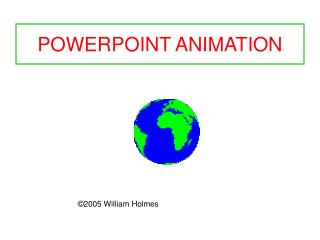
PowerPoint Animation
In this guide, Linda Smith explores how to enhance your PowerPoint presentations by engaging both sides of the brain. Instead of overwhelming your audience with text-heavy slides, learn to utilize minimal words paired with impactful graphics. This approach keeps the audience engaged and stimulated, preventing distractions and maintaining interest. From inserting shapes and adding animations to effectively using Office 2010 features, discover practical steps to bring your presentations to life and maximize their effectiveness.

PowerPoint Animation
E N D
Presentation Transcript
PowerPoint Animation Linda Smith
Proving Your Point To Both Sides of the Brain
Making the Point • Some people type every word they are going to say on a slide in a PowerPoint presentation. While words can be very powerful and effective too many of them on one page can cause distraction and an occasional yawn or two. Regardless of the content the audience will lose interest when having to stare at slide after slide of text. It is better not to have a PowerPoint presentation at all if the audience is expected to follow word after word of text being read to them. So why not appeal to both sides of the brain? A great way to keep an audience engaged and stimulated may be just a few words and added graphics to bring the point home. Office 2010 PowerPoint has the capacity to bring a PowerPoint to life. life. life. life. life. life. life. life. life.
Cerebral Cortex Cerebellum Capture Your audience! Brain Stem
Anatomy of an Animation • Insert a shape Click the insert tab Choose Shape Choose a rectangle Click and drag to draw
The default shape color is a blue shade. Let’s change it to white.
We now have access to the drawing tab. Click on the rectangle. Choose the white fill with the blue border.
Click the down arrow next to Shape Effects. Choose 3D Rotation. Next let’s add dimension.
Insert 2 small Rectangle Shapes. One vertical One horizontal
Use shape fill to change the color of the small vertical rectangle to white.
Take away the outline of the rectangle using Shape Outline and choosing No Outline.
Click the down Arrow next to Effect Options Click the Animation Tab, choose Wipe Choose From Left Select all Arrows in the Animation Pane. Select all arrows.
Add effects.
Anatomy of a Stroke Brain Tissue is Deprived of Oxygen Clot Lodges in Smaller Artery Clot Travels Upward Toward Brain Clot Loosens in Carotid Artery