Download
1 / 36
360 likes | 478 Views
This presentation provides an overview of Visual Basic (VB), exploring its origins, key concepts, and main components. Attendees will witness a demonstration of a simple program and more complex applications, highlighting the limitations of VB while offering guidance on next steps for learning. From the history of BASIC at Dartmouth College to the robust capabilities of VB.NET, this talk will cover essential programming elements such as variables, statements, and objects. Participants will also learn about user interface design and debugging techniques, culminating in a practical example of Iambic Morse code generation.

E N D
An IAMBIC Keyer in VB.NET Dave Wade G4UGM
Aims of Talk • Provide Overview of VB • Introduce key concepts • Main components of VB • Demonstrate a simple program • Show more complex programs • Show limitations • Give pointers on where to go next
Origin of Basic • Invented at Dartmouth College in 1964 (Beginner's All Purpose Symbolic Instruction Code) • Simple, Easy to learn, • Can run on small computers • Pic Basic • Almost Universally implemented • From Mainframe to Micro • Don’t know of a computer without “basic”
Visual Basic • Basic for Windows • but can write “command line programs” • Simplified Windows Programming • “Basic” works out what has been clicked etc. • Calls a “snippet” of code to handle it • Introduced Structured Constructs • Reduced use of “goto” • <and the more evil “come from”>
Iteration Sequence Selection “Structured Programming” • Edsger Wybe Dijkstra • Dutch Computer Scientist • Showed that ANY program could be written using only three constructs:- • All have • One entry, One Exit
Many Dialects in Windows • VBA – Visual Basic for Applicatons • Part of MS Office e.g. Excel, Word • Lets look at this! • Also in “Open Office” • + Other Applications • VB Script • “super” batch language • Also used in “Internet Explorer”
VB.Net • Grown up “Basic” • Fully featured language • “.NET” is the “windows interface” • Used by all windows languages • Current Version is 2008 • Use 2005 – very similar • Special “Express” versions • Free download
Compare with PIC assembler • Number of statements • PIC • 35 instructions • 1 data type • 1 statement = 1 machine instructions • VB.Net • 51 Statement Types • 36 Operators • 150 functions • 1 statement = multiple machine instructions • Probably over 1000 objects in the .Net framework
Elements of Basic - Constants • Constants • Integer – int8, int16, int32 10, 12345, -54 • Floating Point - single, double 1.0, 1.123e-5, 1.6e+5 • String “Hi Dave” • Boolean • True,False • Object • Cover later
Elements of Basic - Variables • A place to store (changing) data • Name (alphanumeric) • Identifies each variable • Usually chosen to reflect use • iCount, dCurrent, bOff • Type • Defines what it can hold • Match Constant Types • int, double, string, boolean • Value • 10,0.95,“Hi Dave”
Elements of Basic - Statements • “Instructions to the computer” • Assignment “=“ • Performs a calculation • Sets a variable to the result • A=A+3 • Control (if, while, do, select, catch, call) • “control” how instructions are interpreted If A > 5 Then Msgbox(“too small”) End If • Data Declarations • Create Variables – Reserve Storage – Give it a name • Dim voltage As Double
Elements of Basic - Routines • Functions and Subroutines • Groups of Statements • Used to perform common tasks • Modules • Groups of Related subroutines • Common Storage • Variables that are shared between routines
“Objects” • Objects – a defined set of • Properties • Variables that can be set or tested • Methods • Functions that perfom and action on the object • Events • Functions called by the object when it wants something to be done • Everything in VB.NET is an OBJECT • .NET framework defines many object types
Forms - The Visual Bit • The most important thing in Windows • The windows • The graphical forms designer. • Allows you to build a user interface • Can add a variety of elements • Radio Buttons • Check Boxes • Combo Boxes • Text Boxes • Command Buttons
Debugging • VB is an “Interpreted” language • Runs more slowly • Debugging can be easier • Debugging tools • Breakpoints • Immediate Window • Demo
“IambicMorse” object SendDot KeyDown() IambicMorse SendDash KeyUp() NoDot CWSpeed CWPitch
Morse Timing • All timing derived from “dot” • Dash = 3 x Dot • Element Space = Dot • Inter-character Space = Dash = 3 x Dot • Morse speed based on sending “PARIS” • Total Length = 50 Dots • So for 12 words/Minute • 12x50 Dots/Minute = 600 Dots/Minute • Dot = 60000/600 Ms = 100 Ms • For “W” wpm dot length = 60000/(w * 50) Ms
Making a “Beep” • Every application has “Console” object • This has a “beep” method • Console.Beep (Freq, Duration) • Plays the sound of a beep of a specified frequency and duration through the console speaker. • Frequency in Hertz, Duration Milliseconds • Do Demo
Code To Send Dot/Dash • Code for a Dot Console.Beep(cwPitch, CInt(60000 / (50 * cwSpeed))) • Code for a Dash Console.Beep(cwPitch, 3 * CInt(60000 / (50 * cwSpeed))) • Code for a Pause Threading.Thread.Sleep(CInt(60000 / (50 * cwSpeed))) • Now look at real code. • SMRCC2
Look at real code • This “code” sends a “dot” + inter-element space. Public Sub Dot() RaiseEvent keydown() Console.Beep(cwPitch, CInt(60000 / (50 * cwSpeed))) RaiseEvent keyup() Threading.Thread.Sleep(CInt(60000 / (50 * cwSpeed))) Application.DoEvents() End Sub • Dash code is the same • Except seens a longer beep • NoDot code just sleeps • Used for AutoComplete logic .
The “Real” Program • Main page
The “Real” Program • Settings
The “Real Program” • Send from box
The “Real” Program • Module Definitions • Used to pass data between the routines • DotDown and DashDown • Current state of “paddles” • DotWas and DashWas • “Memories” • only cleared when a character sent
Generating Morse • Program will accept input from • Paddle on RS232/Serial Port • Mouse when pointer is over the “send pad” • Mouse Input • Use left and right buttons • Only when mouse is over a special spot
Morse from Mouse • Code Called when a button pressed If (e.Button = Windows.Forms.MouseButtons.Left) Then If ChkSwap.Checked Then DotDown = True DotWas = True Else DashWas = True DashDown = True End If End If • Duplicate for other button • When the button is released • clear the “DotDown” ONLY
Sending Logic While DotDown Or DashDown Or DotWas Or While DotDown Or DashDown Or DotWas Or DashWas If DotWas Or DotDown Then keyer.Dot() DotWas = False End If If DashWas Or DashDown Then keyer.Dash() DashWas = False End If End While If ChkAuto.Checked Then keyer.NoDot() keyer.nodot() End If End While
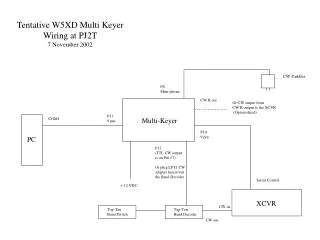
Interfacing a Real Key • I used a serial port • Because VB.NET has this built in • Use the “Control” lines • RTS used to drive the “Paddle Key” • DTR used to drive the “PTT” • CTS & DSR are inputs from Key • VB calls an “Event” when a line changes • Program then can set status
The Real Code If (e.EventType = IO.Ports.SerialPinChange.CtsChanged) Then If MYPort.CtsHolding Then DotDown = True DotWas = True Else DotDown = False End If End If If (e.EventType = IO.Ports.SerialPinChange.DsrChanged) Then If MYPort.DsrHolding Then DashDown = True DashWas = True Else DashDown = False End If End If If ((Not Sending) And (DotDown Or DashDown)) Then SendTask = New Thread(AddressOf SendCw) SendTask.Start() End If
SendByte Function • Need to convert letters to “morse” • Uses the Morse_Code(char) function • Returns a string for each character • “T” for “doT” • “H” for “dasH” • So for example:- • “S” => “TTT” • “O” => “HHH” • “P” => “THHT” • Special Symbols • + (AR) ! (AS); # (KN); $ or * (SK); • % (SN); & (KA); = (BT); @ (AA).+ • Can then send use the Morse Keyer object • Used by to send “F” keys and “text” box
Preset Buttons • Send Preset Strings • Stored in settings • Both caption and text can be set • Can be sent by • Click on button • Press “F” Key • Can be saved using the “my.settings”
Settings Page • Speed & pitch Control • Slide Bar with Max and Min Set • Preset Send Keys • Captions and Values • Select “com” port for Key • “Enumerate” ports • Fills the drop down box • Other tweaks • Swap paddles • Enable/Disable “auto complete”
Future Options • Two Tone Railway Morse • Needs an extra property on the morse object • Sending from File • Load file into text control • “Skins” • Change the color and font • “Classic”, “Modern”, “ArtDeco”