Activity 2 Creating a blank database
This guide walks you through the process of creating a blank database in Microsoft Access. Start by launching Microsoft Access and selecting ‘File’ followed by ‘New’. Choose ‘Blank Database’ from the options on the right panel. Specify the destination folder and name your database file as db1.mdb before saving. Once created, you can explore different objects within the database window. Finally, close the database and the Microsoft Access application by using the ‘Close’ button or ‘File’ menu options.

Activity 2 Creating a blank database
E N D
Presentation Transcript
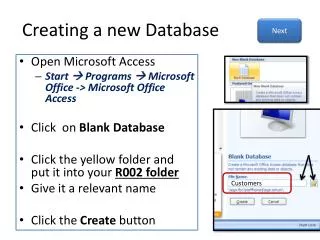
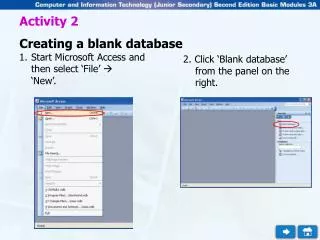
Activity 2 Creating a blank database • Start Microsoft Access and then select ‘File’ ‘New’. 2. Click ‘Blank database’ from the panel on the right.
Activity 2 Creating a blank database 3. Select the destination folder and save the database file as db1.mdb. Click when ready. • A blank new database document is created. Click different objects to see the changes in this window. Create Destination folder File name
Activity 2 Creating a blank database 5. Click the ‘Close’ button at the top right corner of the database window. Alternatively, you can select ‘File’ ‘Close’ to close the database file db1.mdb. 6. Click the ‘Close’ button at the top right corner of Microsoft Access window. Alternatively, you can select ‘File’ ‘Exit’.
Activity 2 Creating a blank database 5. Click the ‘Close’ button at the top right corner of the database window. Alternatively, you can select ‘File’ ‘Close’ to close the database file db1.mdb. 6. Click the ‘Close’ button at the top right corner of Microsoft Access window. Alternatively, you can select ‘File’ ‘Exit’.