Download
1 / 12
120 likes | 243 Views
Discover the powerful capabilities of ArcGIS software, which includes ArcMap, ArcCatalog, and ArcToolbox. This software suite not only retains all functionalities of previous versions but also adds advanced tools for spatial data analysis, management, and editing. Users can easily create thematic maps, analyze spatial relationships, and design presentation-quality layouts. With an intuitive interface, the software simplifies data querying and visualization without needing extensive technical knowledge. Streamline your GIS processes with the latest enhancements in ArcGIS.

E N D
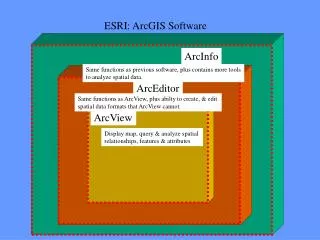
Same functions as previous software, plus contains more tools to analyze spatial data. Same functions as ArcView, plus abilty to create, & edit spatial data formats that ArcView cannot. Display map, query & analyze spatial relationships, features & attributes ESRI: ArcGIS Software ArcInfo ArcEditor ArcView
ArcGIS ArcView, ArcEditor, & ArcInfo are transparent to the user: • user does not need to know software type for • many GIS functions & applications • can open, display, & query data from any of • the 3 softwares.
Training focus will be • View & display data by color & symbol • Create thematic maps • Find/ locate attribute data on maps • Query and analyze data through spatial & attribute characteristics • Edit features • Creating presentation quality maps to print • ArcMap will be the application used, with some ArcCatalog & ArcToolbox functions
ArcGIS is composed of 3 applications: • ArcMap • ArcCatalog • ArcToolBox
ArcMap: • Create maps from spatial data • Choose colors and map symbols • Analyze spatial relationships • Design map layouts for printing
ArcCatalog: • Browse spatial data (hard drive, network, or internet) • Preview spatial data & add it to ArcMap • Create & view metadata (information about the data such as source, creation date, description, etc.)
ArcToolBox: • Tools to convert data from different formats Change to or from shapefiles, coverages, tables, or geodatababases • Tools to manage data Aggregate, generalize, projections, topology, etc. • Tools to analyze data Extract, overlay, proximity, statistics, or surface
MainMenuToolbar Standard Toolbar DataFrame Table of Contents Map Display Tools Toolbar Drawing Toolbar
01_Exercise_ArcGIS • Open & display data through use of a map document (.mxd) - map document (.mxd) window. The data layers’ characteristics contain settings such as pre-set colors, line thickness, fill, and a specific view or scale. • Add to the Table Of Contents (TOC): - layer A category of the data to display in the ArcMap display window as well as listed in the table of contents; Layers can be many formats- shapefiles, coverages, geodatabase features, raster, etc. - data frame A collection of data layers that displays in the display view window. Multiple data frames can exist in a map document.
01_Exercise • Context menu- right click a layer in TOCto display the context menu contains many more GIS options of the data layer • Navigate using Tools Toolbar such as pan, zoom in & out, identify, and find.
01_Exercise • Open / Save Map Document • Layer Properties:Changing the appearance of displayed data symbols • Open data layers from Arc GIS filetypes: shapefile, coverage and geodatabase feature class • Type Name on Map & Print the map window