Creating Accessible PDFs: Section 508 & WCAG Compliance
330 likes | 432 Views
Learn how to create accessible PDFs that comply with Section 508 guidelines and WCAG standards. This guide covers setting language and document structure, using alt-text for images, following the correct reading order, structuring headings and hyperlinks, and tagging list items correctly. Ensure your PDF documents are accessible to all users, including those with disabilities.


Creating Accessible PDFs: Section 508 & WCAG Compliance
E N D
Presentation Transcript
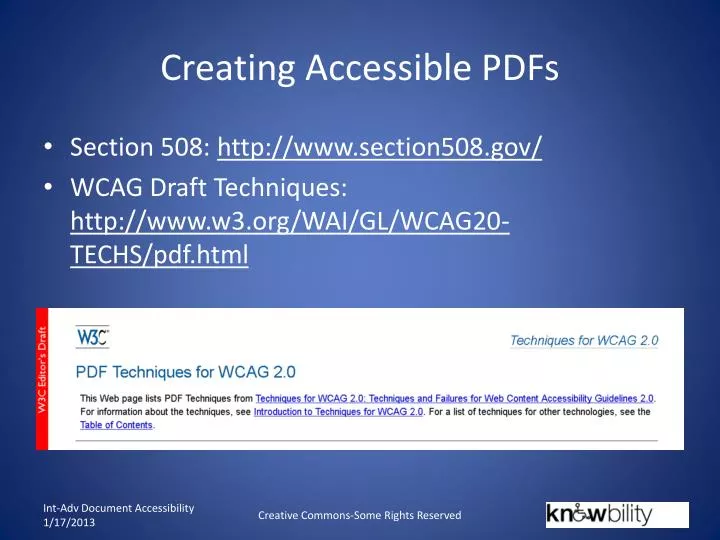
Creating Accessible PDFs • Section 508: http://www.section508.gov/ • WCAG Draft Techniques: http://www.w3.org/WAI/GL/WCAG20-TECHS/pdf.html Creative Commons-Some Rights Reserved
Setting Language and Document Structure Setting Language: File-Properties- Advanced Tab- Language Setting Document Structure: Pages Panel-Highlight all pages-Right click on pages-Page properties- Use Document Structure Creative Commons-some Rights Reserved
Some Common Tags • <P>: paragraph • <H1> through <H6>: Heading 1-6 • <Figure>: Graphical Image • <Table>: Marks beginning of a table • <TR>: Marks beginning of Table Row • <TH>: Table Header • <TD>: Table Data • <L>: List - Marks beginning of list • <LI>: List item • <LI_Lable> The list item label • <LI_Title> The list item title • <Link>: Link • <TOC> Table of Contents • <TOCI> Table Item • <TOCI_Title> Title of the Section • <TOCI_Page> Page Number of section Creative Commons-Some Rights Reserved
Alt-Text • Ensure all images that contain meaning are tagged as figures and contain meaningful alt-text. Creative Commons-Some Rights Reserved
Alt-Text Creative Commons-Some Rights Reserved
Alt-Text • How would you describe this image? Creative Commons-Some Rights Reserved
Alt-Text • How we described it: Graphical image is a chart depicting a timeline with Acquisition Steps to Ensure Agency Commitment to Programs/Projects. The following key decision points and major reviews progress as follows: Formulation : A. Pre-Program Acquisition • ASP • ASM • JICB (Ongoing) Implementation: B. Program Acquisition/Program Evaluation a. Program System Requirements/ Definition reviews • PSM b. Preliminary Design Review c. Critical Design Review d. Systems Integration Review e. Operational Readiness Review • JCIB (Ongoing) C. Operations/Program Evaluation f. Flight Readiness Review g. Post Launch Assessment Review h. Program Status Review 3. JCIB (Ongoing) D. Closeout/Decommission Note: Acquisition Strategy and Planning is integral to Program Management and is owned by key decision makers. Creative Commons-Some Rights Reserved
Alt-Text • Ask yourself: • Does it convey meaning? • Is it clip art, a chart, a graph, a logo, or a map? • Does the Map have a Key? Does it show points of interest? • What type of chart or graph is it? • Flowchart – If then statements • Timeline – Time markers • Line graph – Data points: x, y coordinates • Bar graph – Tabular information Creative Commons-Some Rights Reserved
Reading Order • Should be left to right and top to bottom. • Information may be presented in two column text. • Tag in the order in which you want it to read and save often. • Order Panel allows you to adjust reading order of contents. Creative Commons-Some Rights Reserved
Headings • Use headings in a logical hierarchical order. • Sub headings will be H2’s, H3’s etc. • More Headings are located in the tag properties up to H6. Creative Commons-Some Rights Reserved
Headings Creative Commons-Some Rights Reserved
Hyperlinks • Meaningful! (not Click ‘Here’ or “More’) • Standardize link indicators • Knowbility Home Page [www.knowbility.org] Creative Commons-Some Rights Reserved
Hyperlinks Use the Link tool to zone link text separately, then use the link properties to set the destination URL. Creative Commons-Some Rights Reserved
Hyperlinks • For web pages type URL exactly as seen in document • For E-Mails address type Mailto: before E-Mail address. Mailto:kblack@knowbility.org Creative Commons-Some Rights Reserved
Hyperlinks • Tag link text as <P> paragraph tag > right click tag and select “find unmarked links” • Ensure Tag structure shows <Link> then <Link-OBJR> then Content Box containing link text Creative Commons-Some Rights Reserved
List Items • List items can appear as ordered or unordered lists in the body of the document. • Ordered Lists contain numbers or letters • Unordered lists have bullets • Both types of lists utilize the same tags in a PDF. Creative Commons-Some Rights Reserved
List Tags • According to the W3C Editor’s Draft: The PDF specification defines list structure in section 14.8.4.3.3 (List Elements). The structure types for lists in PDF documents are: • L - the List tag, which contains one or more LI tags. • LI - the List Item tag. List item tags can contain LI_Labeland LI_Titletags. • LI_Label- the list item label. Contains distinguishing information such as a item number or bullet character. • LI_Title- the list item title. Contains list item content, or in the case of a nested list, it may contain additional List tag trees. Creative Commons-Some Rights Reserved
List Tags Creative Commons-Some Rights Reserved
Making scanned documents accessible • Scan the document • Once the scan is complete use Document > OCR Text Recognition > Find first OCR suspect to look for problems in the conversion. • Correct any problems you find and repeat the process as necessary. • Add alt text to any graphic images. • Repair the structural elementals such as reading order. • Then run the accessibility check to see if anything else needs your attention. Creative Commons-some Rights Reserved
Scanned Documents • OCR Process: If the PDF file is a scanned image of text, an Optical Character Recognition (OCR) process must be followed. • In Acrobat Pro 9.0 select Document > OCR Text Recognition > Recognize Text Using OCR... > then select all pages in document for conversion. • In Acrobat Pro 11.0 Select Tools > Text Recognition > Find all Suspects > In This File > Select “All Pages” Creative Commons-some Rights Reserved
Scanned Documents – OCR Acrobat Pro 11.0 Creative Commons-some Rights Reserved
Scanned Documents - OCR Verification • Once OCR has been completed Tags must then be added to the document. • Once OCR conversion is complete each tagged element must be manually checked and verified. • If errors are found “actual text” fields in the tag properties must be updated with edited content. Creative Commons-some Rights Reserved
Scanned Documents - Actual Text Creative Commons-some Rights Reserved
Scanned Documents - OCR • Once you have run OCR on the document, tags must be added. • Demo: Letterpress sample.pdf Creative Commons-some Rights Reserved
Module 2: Making fill-able forms accessible • Common types of form fields: • Text Entry Field • Checkbox • Radio Button: • Must have identical name and tooltip for single selection Creative Commons-Some Rights Reserved
Accessible Forms Steps: • Detect form fields automatically or add manually • Edit form field properties • Apply tag structure to the document • Associate form fields with text tags and ensure a proper reading order Creative Commons-Some Rights Reserved
Accessible Forms - Step 1 • Detect form fields: Tools > Forms > Edit > Automatically Detect Form Fields • Not always beneficial to automatically detect form fields but may be useful for some documents. Creative Commons-Some Rights Reserved
Accessible Forms - Step 2 • Edit form fields’ properties: name and tooltip, add additional form fields where necessary. Creative Commons-Some Rights Reserved
Accessible Forms - Step 3 • Apply tag structure to the document with tags from Tools > Accessibility > Touch up reading order Creative Commons-Some Rights Reserved
Accessible Forms - Step 4 • Associate form fields with text tags and ensure a proper reading order • Find tag from selection > find unmarked annotations Creative Commons-Some Rights Reserved
Accessible Forms • Demo Accessible Forms Creative Commons-Some Rights Reserved
Testing in JAWS • Common hot keys: • Insert + f5 : Show list of forms • Insert + f6 : show list of headings • Insert + f7 : show list of links • Insert + z : turn on quick keys • Arrow keys : navigate within page • H or shift + H : Navigate by heading • T or shift + T : Navigate by table • Ctrl+alt+arrow keys : Navigate within a table Creative Commons-some Rights Reserved
Thank-you • Presented by: Kirk Blackkblack@knowbility.org Knowbility.org http://www.knowbility.org Creative Commons-some Rights Reserved