Easy Setup Guide for TicTrac Modem Connection
Follow this step-by-step guide to set up your TicTrac modem effortlessly. Start by clicking the colorful Windows icon and navigate through the settings to add a new modem connection. Select "Pretec Compact Modem" and enter the name "Ferrero," followed by your username "TicTrac" and password "Ferrero03." After finishing the setup, manage your existing connections, and connect to the modem. Pay attention to the arrows on the screen to confirm a successful connection. Launch Pocket WriteTrac once connected!

Easy Setup Guide for TicTrac Modem Connection
E N D
Presentation Transcript
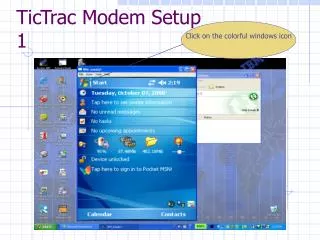
Click on the colorful windows icon TicTrac Modem Setup1
TicTrac Modem Setup2 Then click settings
Click add a new Modem Connection TicTrac Modem Setup4
TicTrac Modem Setup5 Select Pretec CompactModem Enter Ferrero For the Name Lastly click Next
TicTrac Modem Setup6 Enter the User Name TicTrac and Password Ferrero03 Then click Finish
TicTrac Modem Setup7 Click Manage Existing Connections
TicTrac Modem Setup8 With the Stylist pen Press and hold on the Connection you will see Connect Press connect
Connecting with the Modem Click on colorful Icon next to Start
Connecting with the Modem Select connections
Connecting with the Modem Click Connections Then double Click Connections Icon
Connecting with the Modem Click Manage Existing Connections
Connecting with the Modem Press and Hold On the connection And then choose connect
Connecting with the Modem Notice the 2 arrows at The top of the screen If they stay solid then The modem is successfully Connected to our servers Just click ok and then Launch pocket writeTrac