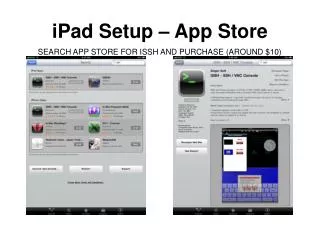
iPad Setup – App Store
This guide provides step-by-step instructions for setting up your iPad to access the App Store and configure terminal display settings, including adding configurations and programming macros. Users will learn how to search for the ISSH application (around $10), run it, and customize the main screen and pie menu for efficient use. Each section includes essential guidelines for labeling functions and ensuring seamless operation through macro settings. Whether you are a beginner or have some experience, this comprehensive guide will enhance your iPad's functionality.

iPad Setup – App Store
E N D
Presentation Transcript
iPad Setup – App Store SEARCH APP STORE FOR ISSH AND PURCHASE (AROUND $10)
iPad Setup – Main Screen • Run App • First tap General Settings
iPad Setup – General Settings GUIDELINE SETTINGS
iPad Setup – Configure Terminal Display • Now tap Configure Terminal Display
iPad Setup – Configure Terminal Display CLICK TO SEE VIDEO
iPad Setup – Configure Pie Menu • tap Configure Pie Menu • These will take the place of your F1-F12 keys if you use them…you will have to program a macro for each key you want to use
iPad Setup – Configure Pie Menu • Find a blank section of pie and tap on it
iPad Setup – Configure Pie Menu • Label = what function it is replacing • Make sure Macro is selected
iPad Setup – Configure Pie Menu • Macro is the actual keystrokes you want to happen when you press this “pie”… • In this example, when you press the “F1” pie…it will type “end” (without the quotes) and a carriage return (which is the - ^M)
iPad Setup – Add Configuration • Back to the main screen and tap • Add Configuration
iPad Setup – Add Configuration Description Name this connection Host Your WAN IP Port Always 1852 Login Your secure shell login name Password Your secure shell login password
iPad Setup – Add Configuration • You should get a green light next to connection…click your configuration to connect
iPad Setup - Login • For mobile devices, always use your SECOND port… • You will need to contact support to change that second port to be vt100 compatible
iPad Setup - Login • You should know what to do from here!
iPad Setup - Login • Press and hold to bring up pie…