Optimizing Auto Detection Settings for Specimen Analysis
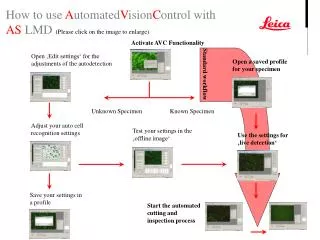
Unlock the full potential of your specimen analysis by activating the AVC functionality to edit settings for autodetection. Begin by opening a saved profile for your specimen, whether it is a standard workflow or an unknown specimen. Fine-tune your auto cell recognition settings and test these adjustments using the offline image feature. Once satisfied, utilize your customized settings for live detection and proceed to save them in a profile. Finally, initiate the automated cutting and inspection process for efficient specimen analysis.

Optimizing Auto Detection Settings for Specimen Analysis
E N D
Presentation Transcript
Activate AVC Functionality Open ‚Edit settings‘ for the adjustments of the autodetection Open a saved profile for your specimen Standard workflow Unknown Specimen Known Specimen Adjust your auto cell recognition settings Test your settings in the ‚offline image‘ Use the settings for ‚live detection‘ Save your settings in a profile Start the automated cutting and inspection process