Whiteboard
Whiteboard. Whiteboard. Objectives Load a PowerPoint file Navigate and edit pages using the Page Explorer Navigate the Pages using the Whiteboard navigation buttons Utilize the Whiteboard tools. Load Content. Click Load Content button Locate PowerPoint file

Whiteboard
E N D
Presentation Transcript
Whiteboard Objectives • Load a PowerPoint file • Navigate and edit pages using the Page Explorer • Navigate the Pages using the Whiteboard navigation buttons • Utilize the Whiteboard tools
Load Content • Click Load Content button • Locate PowerPoint file • File will be converted to the Whiteboard format and loaded
Tips on PowerPoint • Loads as an image • No animation or transitions • No embedded audio and video • Add URLs via Whiteboard text tool
Page Explorer • Opens when content is loaded. • Can be used for navigation and editing
Navigation • Moving from page to page
Explore Mode • Use Explore Mode to explore other pages while leaving others on the current page. • Moderator only feature • Moderator’s button turns red when Explore Mode is on. • Red boundary displays around Whiteboard Page for Moderator
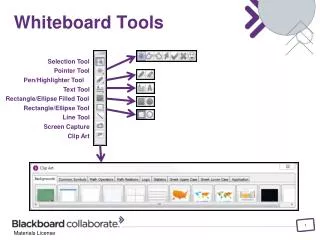
Whiteboard Tools Selection Tool Pointer Tool Pen Tool Text Tool Rectangle/Ellipse Filled Tool Rectangle/Ellipse Tool Line Tool Screen Capture Clip Art
Managing Pages • Add New Page, Clear, Delete • Size Page
Clip Art: Manage Collections • Tools > Whiteboard > Manage Clip Art Collections
Customize and Share • Tools > Whiteboard > Create/Edit Clip Art Collections • Click the Create a new collection in the collections button
Selection Tool • Use to select an object on the screen
Interactive Whiteboard • Add an interactive whiteboard here
Steps for Creating an Interactive Whiteboard Page • Add images, Clip Art or content created using the whiteboard tools to the Whiteboard. • Notice the objects can be moved, resized, etc… the Whiteboard is “object-oriented” • Save as a .wbd file to maintain the interactive quality of the content and reuse in other sessions.