Enhance Productivity with Apache OpenOffice Suite
190 likes | 214 Views
Apache OpenOffice Suite, a powerful open-source office productivity software suite, offers various applications for word processing, spreadsheet management, presentations, drawings, and more. Compatible with Microsoft Office formats, it's available for Linux, OS X, and Windows.


Enhance Productivity with Apache OpenOffice Suite
E N D
Presentation Transcript
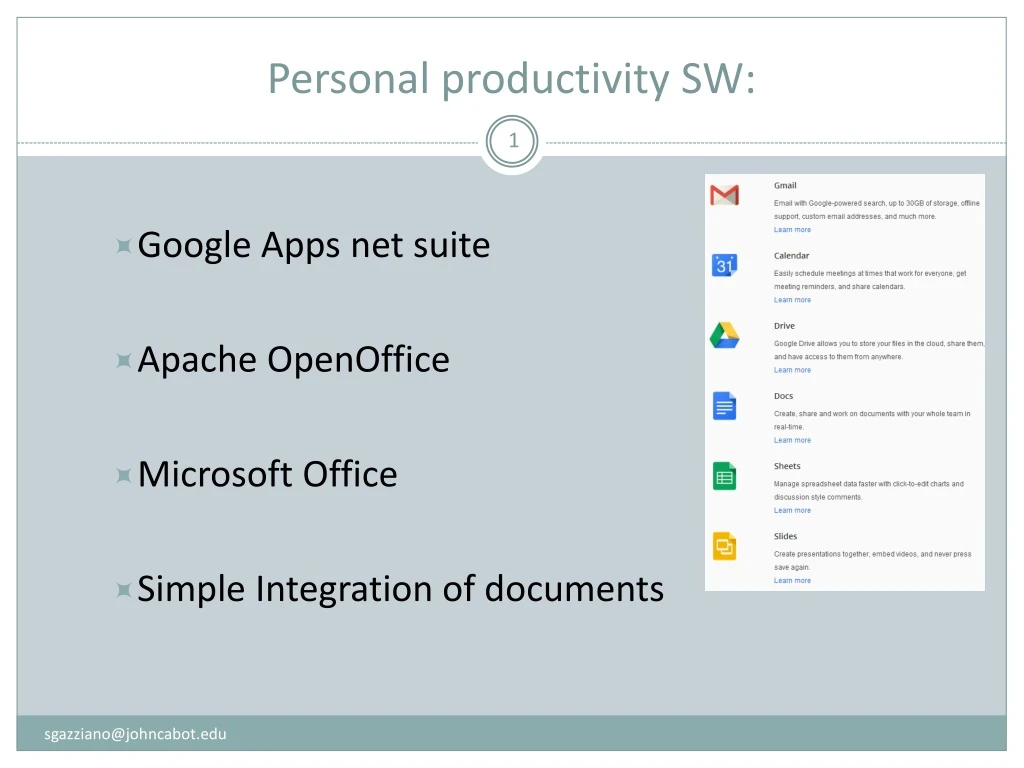
Personal productivity SW: • Google Apps net suite • Apache OpenOffice • Microsoft Office • Simple Integration of documents sgazziano@johncabot.edu
Apache Open Office 4 commonly known as OpenOffice, or AOO Apache OpenOffice (AOO) is an open-sourceoffice productivity software suite. It descends fromOpenOffice.org and IBM Lotus Symphony,[5] and is a close cousin of LibreOffice. Apache OpenOffice contains a word processor (Writer), a spreadsheet (Calc), a presentation application (Impress), a drawing application (Draw), a formula editor (Math), and a database managementapplication (Base).[6] Apache OpenOffice's default file format is the OpenDocument Format (ODF), an ISO/IEC standard, which originated with OpenOffice.org. It can also read a wide variety of other file formats, with particular attention to those from Microsoft Office. Apache OpenOffice is developed for Linux, OS X and Windows, with ports to other operating systems. It is distributed under the Apache License.[4] The first release was version 3.4.0, on 8 May 2012.[1] sgazziano@johncabot.edu
Apache Open Office 4 sgazziano@johncabot.edu
Other personal productivity software WinZIP: file compressione / decompression Image processing software: Photofiltre sgazziano@johncabot.edu
Other personal productivity software ZIP / Winzip – compress archives sgazziano@johncabot.edu
Win Zip & co. – Compressing archives My tutorial on Winzip: available on Myjcu sgazziano@johncabot.edu
Win Zip & co. – Compressing archives The folder is COMPRESSED sgazziano@johncabot.edu
Win Zip & co. – Compressing archives The folder is COMPRESSED So we now have two folders The original folder The “zipped” (compressed) folder sgazziano@johncabot.edu
Win Zip & co. – Compressing archives The “zipped” (compressed) one contains the original folder, packed WARNING: Windows makes the zipped folder “look like” a regular folder to the user but IT IS NOT a normal folder. sgazziano@johncabot.edu
ZIPPED is not a regular folder This is a regular folder, file exist in the “Desktop” folder This is a “ZIPPED”, i.e. Compressed folder, if you open files here, they will be seen by the user as “look alike” regular files, but they do not exist in “Desktop”, rather in a “TEMP” folder, deleted after closing files. sgazziano@johncabot.edu
Win Zip & co. – Compressing archives The “zipped” (compressed) one contains the original folder, packed, which in turn contains the original files, packed sgazziano@johncabot.edu
Win Zip & co. – Compressing archives The “zipped” (compressed) folder is moved somewhere else sgazziano@johncabot.edu
Win Zip & co. – Compressing archives Somewhere else, the compressed folder is “expanded”, see the original folder inside ? sgazziano@johncabot.edu
Internet as a resource tutorial 3 steps, 3 different actions Search content Use Text Use Images sgazziano@johncabot.edu
Internet as a resource tutorial Search for information • Info must be confirmed (by other web sites) better not trust a single source • Quantitative info must come from a realible or authoritative source (someone with a good reputation, like UN, Intl Agencies, BBC, ...) • Reliable sources are those quoted by other sites most often sgazziano@johncabot.edu
Internet as a resource tutorial Use text from web sites The technique is : • select , copy (mouse operation, careful about margins) • unformat(paste into “notepad” or similar editor, then reselect and copy) • paste into final (i.e. Word) document sgazziano@johncabot.edu
Internet as a resource tutorial Use images Technique is : • Right-click • Save as, file on your pc • Modify (crop, resize, adjust) using a photo retouch SW (e.g. Photofiltre) • Save as .JPG or .GIF • Insert in the document sgazziano@johncabot.edu
First test on integration of documents - 1 • Test - this isGRADED • Find the cost of a programmer, a system manager, a project manager in: • USA or European Union • India • China • Write a single-page paper using MS Word, using copy and paste, using a selection of text taken from http://en.wikipedia.org/wiki/Offshore_software_R%26Dand quote the costs you’ve found. (mention the costs and the source) • Find and include a suitablepicture (Google searchimages) sgazziano@johncabot.edu
First test on integration of documents - 2 When you’re done with the “paper” ZIP THE FILE – NAME IT YOURNAME.ZIP EMAIL THE ZIPPED FILE TO SGAZZIANO@JOHNCABOT.EDU SHARE IN GOOGLE DOCS TO GAZZIANO@GMAIL.COM sgazziano@johncabot.edu