Navigating Integrated Presence in StarPanel: A Step-by-Step Guide
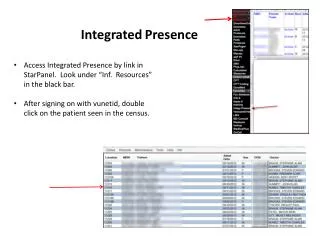
This guide provides clear instructions on accessing Integrated Presence via StarPanel. Once logged in with your VUNetID, locate the "Inf. Resources" section in the black bar. After signing in, double-click on the patient listed in the census to display their information. To view additional details, click on "More Data" in the upper left frame. For a full-screen view, click the blue box in each frame. To switch to another patient, use the toolbar and select "Census." Note that blue text indicates inactive options.

Navigating Integrated Presence in StarPanel: A Step-by-Step Guide
E N D
Presentation Transcript
IntegratedPresence • Access Integrated Presence by link in StarPanel. Look under “Inf. Resources” in the black bar. • After signing on with vunetid, double click on the patient seen in the census.
The patient selected will display. • Click on More Data in upper left frame to see more values. • Click on blue box in each frame to see full screen. • To select another patient, go to the tool bar and click • Census. • Blue text is not active.