Download
1 / 13
130 likes | 238 Views
This guide provides step-by-step instructions for setting up your HP 5550 iPAQ to connect to the internet using Pocket PC 2003. Learn how to power on your device, access your programs, and enable Wi-Fi connectivity. Follow the directions to successfully log in to the CSUMB network and access the Class Site, including the Japanese class site for PDA users. Get started on your iPAQ device today and explore the web with ease!

E N D
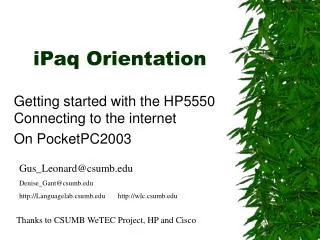
iPaq Orientation Getting started with the HP5550 Connecting to the internet On PocketPC2003 Gus_Leonard@csumb.edu Denise_Gant@csumb.edu http://Languagelab.csumb.edu http://wlc.csumb.edu Thanks to CSUMB WeTEC Project, HP and Cisco
Hardware Orientation • Power • Start Button • Action buttons • Navigation Wheel • Network Indicator Lights • Status Light • Soft Reset Button • Volume • Headphone Jack • Speaker • Microphone
Step 1: Power On • Press start button to power up.
Step 2: Access Program Tap ‘Start’ button. Tap ‘iPAQ Wireless’.
Step 3: Turn on Wireless Network • Tap ‘WLAN’ in the ‘Wireless Control’ window.
Step 4: You are Connected • A green ‘WLAN’ icon indicates access to the internet.
Step 5: Connect to The Internet • At the ‘Start’ menu, tap ‘Internet Explorer’ icon.
Step 6: Favorites • Tap the star icon from the menu at the bottom right of your screen.
Step 7: CSUMB.EDU • Expand the CSUMB folder.
Step 8: WLCmedia.edu • Tap ‘wlcmedia.csumb.edu’.
Step 10: Accept Key • Tap ‘Yes’ to proceed to the ‘Authentication’ screen.
Step 11: Login • Tap to place cursor in the ‘OtterID’ box and key in your username. • Tap to place cursor in the ‘Password’ box and key in your password.
Step 12: Class Site • You have entered the Japanese class site for ‘PDA’ users.