Download
1 / 34
340 likes | 441 Views
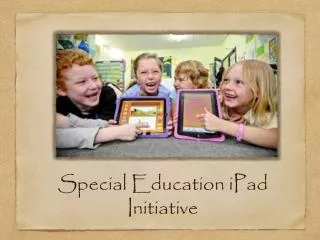
Explore the endless possibilities of using iPads in special education settings. Learn how to utilize this versatile tool to enhance teaching, engage students, and manage information effectively. Discover the best apps for students with special needs and how to customize your iPad for optimal results. Stay informed on essential features, app management, and storage solutions to make the most out of your device.

E N D
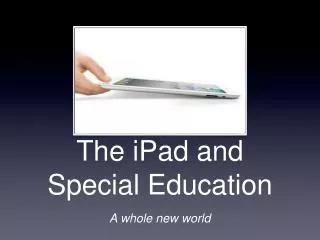
The iPad and Special Education • A whole new world
Why we love it • Touch window - instant access • Multi-purpose tool - it can do anything! • Students motivated to use it • Familiar technology • It's cool!
New things we need to learn • How do I save or store information? • How do I use the iPad for group teaching? • What is the best way to bring information into the iPad? • What apps really are useful for students with special needs? • How do I manage a school owned device, but I want to put my own apps on it? • How do I keep track of what I have?
Questions... • New technology brings new questions to our jobs • Post-It exercise
Schedule for Today • Settings info you should know • App Management • Saving information • Getting and using photos • Presentation apps • Writing through the continuum • All the ways to read
The basics • iPad will "hibernate" and keep a charge for up to 11 hours - you don't need to always turn it off • Volume buttons on side or in "hidden screen" - know your mute! • "Home" (or quit) button on the bottom - double click for hidden screen and to quickly switch between apps • scroll to the left on the hidden screen for volume, brightness and music • iPad will automatically rotate to position - double click to lock in place - you can change this in Settings
Know your settings • Many controls can be modified in this panel • Individual apps have their own settings - also in this control panel • substantially upgraded in OS-5 • become familiar with the features here that you need so that you can quickly move in and out
OS 5 features you should know • Speak Selection • Large Text • Bluetooth • ICloud • Zoom • Shortcuts • Split keyboards • Dictation (new iPad)
Find my iPad • Free feature - you can find your iPad from any other computer or OS device • www.icloud.com • After you set up a free iCloud account, you then make sure your location services are on
App Management • Double click on "home" to open up bottom - recently used apps • Force quit apps that are frozen or get stuck • Put most-used apps down below in docking station • Put "teacher" apps on another screen • Turn off deleting apps or purchasing of apps in restrictions • Lose an app? No worries - quickly reload it
Know your App Store • Manage your apps on your iPad • You can have multiple iTunes accounts on a single iPad (teacher, personal, student) • Each iPad can only be synced with one computer • Don't worry - you won't "lose" any apps • Know how to switch in and out of iTunes accounts
App Management • Computer search or directly in iPad • Know some good teacher blogs or websites to follow • Gift cards versus apple volume pricing • Think a plan through before starting to purchase • Whoever purchases the app - OWNS the app • Know how to retrieve and remember your apps
Email • Select the account type for your email service • Multiple accounts can be accessed • Email is one way to deliver information from your computer to your iPad • set up a free email account for your classroom to use to share files/pictures • Turn email off and on in settings to protect privacy
How to save information • Different than computers - OS devices are not meant to store lots of information • The plus - you don't "lose" anything • Cloud-based filing - new mentality • Know multiple ways - not every app is consistent with every method • Some apps have their own backup system with passwords
Dropbox • Free download at www.dropbox.com • 2GB of free space - fee if over • On your computer, you will see a dropbox folder - save work into this folder • It will appear in your iPad under the dropbox application • You can share folders with others • You can access online • Dropbox requires Wi-Fi to transfer information but not to use
GoDocs • Works with Google account and Google docs • You can download and open in another app • You can save it back in Google docs or as a PDF or text document
iWork • Document storage through your iTunes account (iCloud) • Only works with Pages, Numbers, Keynote • Limited storage, then payment • iCloud customers are provided with 5 GB of free cloud storage. Purchased music, TV shows, apps, and books, as well as photos in your Photo Stream don't count against your 5GB of free storage. • you can use any commonly used Microsoft tools to open
Passwords, Passwords! • Remember them! Each storage app usually requires a password • Develop a consistent system to save them • Keeper - free app to store all passwords securely
Photos • Sync with computer for large files • Email to yourself for individual • You can email up to 5 photos at a time from your iPad • Google search - easiest way if you don't have a camera (iPad1) Hold down your finger on picture - select "save image" Image will be stored in photos • Organize photos into albums for easy retrieval • Screen shots! • Convert to PDF or use program that allows you to write on it directly - photo to PDF - Doodle buddy - PDF Expert
Presentation apps • the new SmartBoards? Just as mobile technology is taking over our lives, it is taking over teacher's lives as well - mobile in the classroom • apps that vary the appearance • use mobile tools: remote app, bluetooth keyboard • Utility apps: Doceri, Splashtop, Remote • Ways to display iPad image: Reflection, AirServer, Apple TV, adapter • Enables teachers to "teach" and then allow students to study later
A review of good ones • Keynote • Idea Boards • Whiteboard Pro • ShowMe Interactive • iMovie • Sticky Notes - abc Notes
Why write with an iPad? • a light portable solution • all-in-one keyboard cases • the ability to use fluidity with writing: handwriting features, audio recordings, voice dictation • onscreen writing support • take a student through the writing continuum from beginning to full productivity • Quickly write on worksheets using photos and PDF
Beginning exploring: Sky Writing, Sand Garden, Doodle Buddy, Pocket Pond • Letter tracing: iWriteWords, LetterTrace, Learn to Write, Dexteria • Handwriting: Write Now, Write Mail, iFinger Mail, HW Mail • Word Processing: Pages, Documents To Go • Voice Feedback/Word prediction - correction: Speak It!, Speak Pad, AbiliPad, Type-O • Picture/PDF writing: PDF Expert, Doodle Buddy • Using images: Comics Creator, Comic Life • Voice Input: Dragon, Paperport Notes
Taking Notes/Studying • iPad provides choices to notetaking: audio, handwriting/drawing, text input: Notability, AudioNote, Audio Memos, Paperport Notes • quickly and easily creating study programs flashcards: Talking Flashcards, Flashcards Deluxe, Cram, ShowMe Interactive
Reading Choices • iPad offers portability • ability to handle volumes of text - easy access • Easy modification of text (size, spacing) and definitions • Text to Speech options • Create your own books
iBooks • You can download free samples of books onto your bookshelf • You can also save PDF files or ePub books • "Store" and search for books • Select "get sample" or free • Adjust text • Dictionary definitions/highlighting • Create your own: Book Creator, PDF
Other creative options • Reader feature in Safari - visual modifies text • Speaking Text- reads highlighted text • Interactive Books - books with auditory feedback - text is on the screen, highlighting as it is read • Pictello, Book Creator- stories with visual, auditory • Read2Go - free book resource for any student with a print disability through www.bookshare.org
Final thoughts... • designate a budget for a trial of apps • coordinate funding and training of apps and how they are going to be implemented • organize an "app committee" with individuals from each discipline to get varied perspectives • remember, we are just at the start of mobile technology - it will only grow from here
Who We Are • Technology Resource Center of Marin • Established in 2001 • Serving 19 school districts - over 4,000 special needs students • over $100,000 in technology grants each year to teachers • ongoing and growing support of technology solutions • www.specialed.org
Thank you! • Dan Phillips, MS CCC-SLP • Technology Resource Center of Marin • dphil@marinschools.org • trc.marinschools.org