Download
1 / 17
170 likes | 303 Views
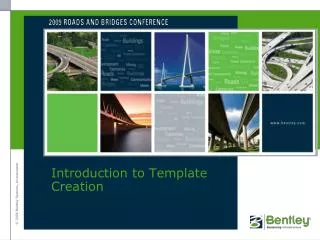
This guide explores the intricacies of template creation, focusing on constraints, point management, and the parent-child point relationship. Learn to navigate fully constrained, partially constrained, and unconstrained points, while understanding how they interact with one another both horizontally and vertically. The workflow covers adding and deleting constraints graphically, component creation for various pavement layers, and establishing end conditions for cut and fill treatments. It provides essential data for implementing effective naming conventions and maintaining design standards.

E N D
Constraints on Template Points • Constraints • Manage Behavior of Template Points • How points move with respect to one another • Point can have up to 2 constraints • Fully Constrained Points • Red + • Two constraints • Partially Constrained Points • Yellow + • One constraint • + Unconstrained Points • Green+ • No constraints
Constraints on Template Points • Parent-Child point relationship • Point B is the Child of Parent point A • Arrow points from Parent point to Child point • Horizontal Constraint • Child is horizontally constrained to parent A B A B
Constraints on Template Points • Vertical Constraint • Child is vertically constrained to Parent • Horizontal and Vertical Constraint • Child is horizontally and vertically constrained to Parent • Slope Constraint • Child is constrained byslope to the Parent A B A B A B
Constraints on Template Points • Adding and Deleting Constraints Graphically • Right-click on points to add and delete constraints • Horizontal and vertical constraints are important • Pavement layers • Superelevation • Transitioning • Helps to relocate points
Component Slopes and Distances • Parent point is placed first • Child placed to the right of Parent is positive distance • Child placed to the left of Parent is negative distance • Child placed above the Parent is positive distance • Child placed below the Parent is negative distance • Slope is algebraic slope Vertical (-) Distance Vertical (+) Distance Negative Slope Positive Slope Horizontal (+) Distance Horizontal (-) Distance
Add Simple Component • Creates constrained parallelogram for pavement layers and sidewalks • Provide the following data: • Component Name and Style • Slope, Thickness and Width
Template Point Names • Defines surface feature names in resulting model • Naming conventions are important during template transitioning • Point names and component names must be unique on a single template • Change names by double-clicking any point • Brings up the Point Properties dialog • Point Name List • Select the point names from a list • Helps maintain standards
Curb & Gutter Detail 3’ – 0” 6” 5” CONCRETE CURB & GUTTER 0.02 FT/FT SW_BK 4” TOC BOC SW_BK_BOT SW_BOT 0.05 FT/FT SHDR GUTTER 1’ – 0” 6 ½” CONCRETE SIDEWALK SHDR_BOT 0.05 FT/FT BOC_BOT 1’ – 6”
Creating End Conditions • Used to Create Cut and Fill Treatments • Consist of End Condition Components • Target Types • Surface • Specify any surface or select Active Surface • Elevation • Feature XY, Feature Elevation, Feature XYZ • Alignment XY, Alignment Elevation, Alignment XYZ
End Conditions Settings • Priority • Establishes Order Components are Applied and Tested • Applies to Segments Branching from a Single Point • Check for Interception • Component Searches for Target • Place Point At Interception • Places a Point when Target is Hit • End Condition is Infinite • Extends the Last Segment to Target • Do Not Construct • Point is Used to Solve Position of Other Points • Point is Skipped when Drawing Component
Testing End Conditions • Testing End Conditions • Verify the Solutions and Priority • Test Multiple Targets • Workflow