Download
1 / 5
50 likes | 222 Views
Finding your IP address on a work computer is essential for network configuration or troubleshooting. If you're using Windows 7, follow these simple steps: First, click on the Microsoft logo and type "cmd" in the search field. Then, type "ipconfig" and press Enter. Look for the local area connection to find your IP address. Alternatively, you can check the IP by typing it into the URL line of your browser and visiting a site like "What is My IP Address." Be sure to note the correct address if multiple are displayed.

E N D
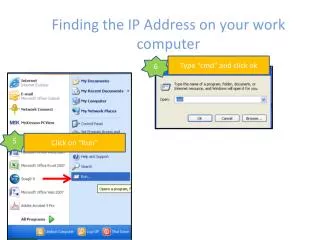
Finding the IP Address on your work computer 6 Type “cmd” and click ok 5 Click on “Run”
Finding the IP Address on a work computer 7 Type ipconfig and press enter 8 Write down your IP address as it appears
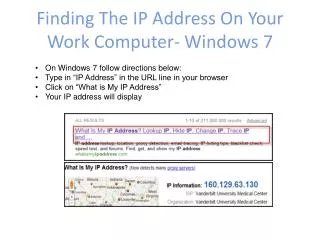
Finding The IP Address On Your Work Computer- Windows 7 If you have updated your computer to Windows 7 follow directions below: Type in IP Address in the URL line in your browser Click on What is My IP Address Your IP address will display
2nd Way To Find IP Address • Click on Micrsoft logo • Type CMD in Search field 3. Type Ipconfig /all (put a space after ipconfig) and enter 4. Scroll to find the local area connection. There are several IP addresses displaying so make sure you get the right one! Click Here for instrutctions to VPN and Remote Access for full details on remoting in from home: