Download
1 / 6
Download Presentation 
Embedding Windows Media Player Controls
An Image/Link below is provided (as is) to download presentation
Download Policy: Content on the Website is provided to you AS IS for your information and personal use and may not be sold / licensed / shared on other websites without getting consent from its author.
Content is provided to you AS IS for your information and personal use only.
Download presentation by click this link.
While downloading, if for some reason you are not able to download a presentation, the publisher may have deleted the file from their server.
During download, if you can't get a presentation, the file might be deleted by the publisher.
E N D
Presentation Transcript
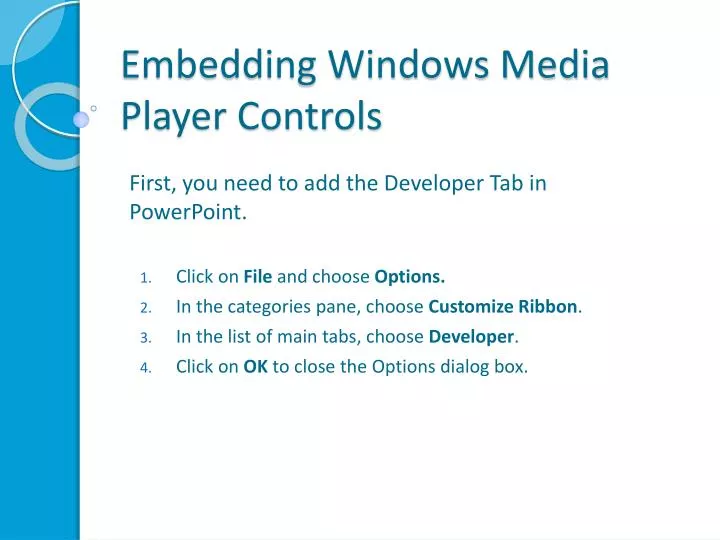
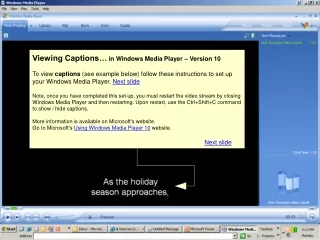
Embedding Windows Media Player Controls First, you need to add the Developer Tab in PowerPoint. Click on File and choose Options. In the categories pane, choose Customize Ribbon. In the list of main tabs, choose Developer. Click on OK to close the Options dialog box.
Next Steps . . . 4. Draw a box and then right-click on the box and choose Properties
The Settings . . . 5. Click inside the blank box next to the box titled (Custom) and then click on the three little dots
Browse for the video 6. Click on the Browse button to find the video that you want to embed and then click on the OK button
That’s It!!! You have now embedded a video with controls like fast forward, rewind, pause, etc – play your PPT to see the video









More Related