Download
1 / 13
130 likes | 244 Views
Dr. Steve Broskoske from Misericordia University presents a novel approach to utilizing PowerPoint with touch screen technology for creating effective computer-based training (CBT) applications. This method allows individual students or small groups to engage with the material through interactive presentations. By incorporating action buttons and customizable navigation, learners can advance at their own pace, freeing teachers to provide personalized support. Embracing Universal Design principles also enhances accessibility for all users. Discover how to transform standard PowerPoint presentations into dynamic, self-directed training tools.

E N D
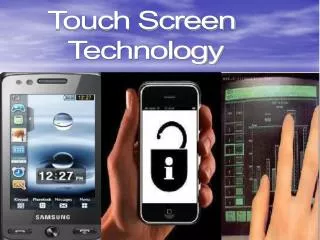
Preparing PowerPoint for Use with a Touch Screen Dr. Steve Broskoske Misericordia University
New Way to Use PowerPoint • Another way to use PowerPoint is to create a computer-based training application (CBT). Actions buttons + Action settings (objects) Computer-based training (CBT)
About CBT • Stand-alone application. • Individual student or a small group can use. • Remedial work / drill & practice / advanced material. • Teacher can be freed up to work with students as needed.
Add Universal Design • Use a touch screen to make the application accessible to all users.
To create a CBT…Add Action Buttons • On every slide create next slide, previous slide, and other buttons as needed. • Select appropriate button type: • Buttons with arrows. • Custom button with typed description.
To create a CBT…Turn Off Normal Navigation • From the slide show tab on the ribbon,select set up slide show from the set up group. • Select browse at a kiosk (full screen). • Be sure to have buttons for navigation on every slide. • Place an “end show” button on last slide.
Title Slide of the presentation This is the first slide of a CBT presentation.
Slide 1 This is one slide of a CBT presentation.
Slide 2 This is one slide of a CBT presentation.
Slide 3 This is one slide of a CBT presentation.
Slide 4 This is one slide of a CBT presentation.
Slide 5 This is one slide of a CBT presentation.
Slide 6 (End) This is the last slide of a CBT presentation. Place an “end the show” button here.