Download
1 / 13
130 likes | 220 Views
Join our Business Workshop at Birkbeck, University of London to explore web accessibility guidelines, tools, and techniques. Learn how to create inclusive web content for all users, including those with disabilities. Improve search engine ranking and comply with laws.

E N D
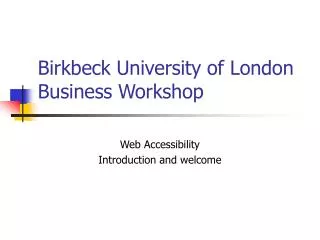
Birkbeck University of LondonBusiness Workshop Web Accessibility Introduction and welcome
Agenda • Welcome, health and safety and lunch • Introduction to WebCT and workshop • Accessibility awareness • WCAG Guidelines • Ex 1: Evaluating accessibility examples • Screen reader • Text-only browser • Keyboard only access • Ex 2: Evaluating accessibility of your websites using checklist adapted from IBM Web Accessibility Checklist • Ex 3: Techniques for converting web page to be accessible
Web accessibility – Why? • Increase market • Access hard to reach market • Higher ranking on search engines (google) • Comply with law • DDA Disability Discrimination Act, • SENDA Special Educational Needs Act
Disabilities • Visual impairments (blindness, low vision, colour blindness) • Hearing impairments • Motor impairments • Cognitive impairments
Assistive technologies used in workshop Specialised hardware/software used to access web content which can be installed and downloaded at home/office • Text-only browser lynx.browser.org/ • HPR IBM Home Page Reader (www-306.ibm.com/able/solution_offerings/hpr.html ) • JAWS (www.freedomscientific.com/fs_products/software_jaws.asp) • Browser using only keyboard and/or ENTER and TAB to access content
Tools used in workshop • Browser set with images off • Browser set to display grey scale • Vischeck – free colour blind testing tools www.vischeck.com/ • Dreamweaver MX 2004 Accessibility Checker • Bobby webxact.watchfire.com/(free version only for testing single pages) • IBM ADesigner (accessibility checker for visual disabilities http://www.research.ibm.com/trl/projects/acc_tech/adesigner_e.htm)
Accessibility – common problems/1 • Images and image map hotspots without appropriate alternative text • Images used for visual purposes not identified with null alternative text • Charts and graph information only available visually • Tables used for layout not data • Misleading structural elements on pages • No jumps to main content to skip navigation/breadcrumbs • Tables that are difficult to decipher when read row by row
Accessibility – common problems/2 • Forms with missing labels • Forms where required fields not indicated • Mouse-defined events without keyboard equivalent • No consistent access keys provided for keyboard access • No transcripts for audio and video content • No synchronised captions for audio content
Valid HTML/CSS – Why? • Use W3C validator to ensure valid code – local copy at www.bbk.ac.uk/ccs/validator • Renders faster than code with errors • Forces browsers to render to standards and avoids ‘quirks’ mode • Renders better than invalid code • Higher ranking on search engines • More likely to work with assistive technologies
Use CSS not tables to layout page • Experiment ‘listening’ to webpage using tables for layout and equivalent with JAWS and HPR • Review CSS and table layout pages using text only browser, screen readers
Define consistent set of access keys • Review UK Government recommended set of access keys • Evaluate access keys on sample website
Set simple accessible ‘more’ links • Review examples of accessible ‘More’ links • Evaluate links on sample website
Set simple accessible tables • Review examples of accessible tables • Evaluate tables on sample website