
Uploaded by
unity
2 SLIDES
241 VIEWS
20LIKES
Put-Away
DESCRIPTION
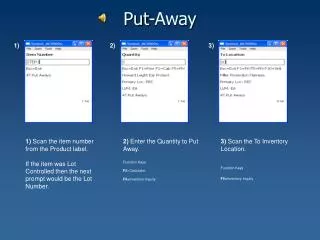
Put-Away. 1). 2). 3). 1) Scan the item number from the Product label. If the item was Lot Controlled then the next prompt would be the Lot Number. 2) Enter the Quantity to Put Away. Function Keys F2 =Calculator F5= Inventory Inquiry. 3) Scan the To Inventory Location. Function Keys
Download
1 / 2
Download Presentation 
Put-Away
An Image/Link below is provided (as is) to download presentation
Download Policy: Content on the Website is provided to you AS IS for your information and personal use and may not be sold / licensed / shared on other websites without getting consent from its author.
Content is provided to you AS IS for your information and personal use only.
Download presentation by click this link.
While downloading, if for some reason you are not able to download a presentation, the publisher may have deleted the file from their server.
During download, if you can't get a presentation, the file might be deleted by the publisher.
E N D
Presentation Transcript
Put-Away 1) 2) 3) 1) Scan the item number from the Product label. If the item was Lot Controlled then the next prompt would be the Lot Number. 2) Enter the Quantity to Put Away. Function Keys F2=Calculator F5=Inventory Inquiry 3) Scan the To Inventory Location. Function Keys F5=Inventory Inquiry
Put-Away 4) 4) The Transaction Accepted with the “IT” number will be displayed for 2 seconds.








More Related