How to Download and Unzip a GC-MS Dataset on Windows
90 likes | 306 Views
This guide provides step-by-step instructions on how to download and unzip a GC-MS dataset on Windows. Start by double-clicking the dataset, and selecting "Run". If prompted, choose "Actions", then "Run Anyway". In this example, the files will unzip into a designated folder named "0000001.d" found in C:WindowsDesktopILRC. Different Windows versions may have varying file structures, so adjust the destination as necessary. Once unzipped, files will be placed in a folder within the ILRC directory and are compatible with Agilent Chemstation.


How to Download and Unzip a GC-MS Dataset on Windows
E N D
Presentation Transcript
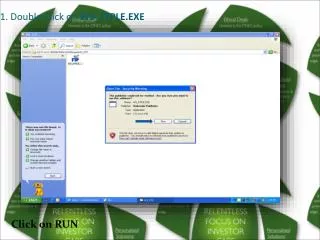
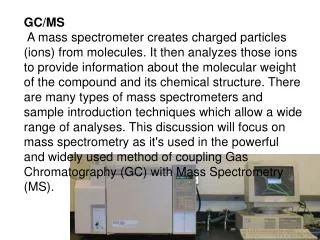
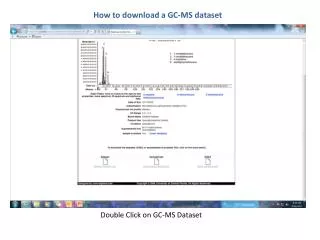
How to download a GC-MS dataset Double Click on GC-MS Dataset
How to download a GC-MS dataset Select Run
How to download a GC-MS dataset Select Actions
How to download a GC-MS dataset Select Run anyway
How to download a GC-MS dataset In this example, the files will unzip into a folder named 0000001.d in the directory C:\Windows\Desktop\ILRC. Newer versions of Windows have different file structures, therefore you may need to select a different destination for the dataset.
How to download a GC-MS dataset In this example, the destination of the files for the GC-MS data set have been changed to C:\Users\Mary\ILRC\00000001.d. Once a destination has been chosen, select Unzip.
How to download a GC-MS dataset A message will appear stating that the 2 files of the dataset have been unzipped successfully.
How to download a GC-MS dataset In this example, a folder named ILRC was created in C:>Users>Mary.
How to download a GC-MS dataset In this example, the 2 unzipped data files were placed into a folder named 00000001.d as a dataset. The data set is placed into the ILRC folder. These datasets with the .d extension are only read by Agilent Chemstation.