
How to Customize Your Poster with Logos
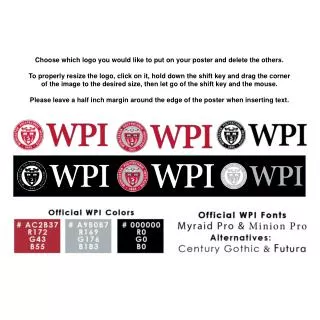
This guide walks you through the process of selecting and resizing logos for your poster. Choose the logo you want to feature and remove the others for a clean design. To resize the logo properly, click on it, hold down the shift key, and drag the corners to adjust the size. Once you’ve set the right dimensions, release the shift key and the mouse. Remember to leave a half-inch margin around the edge of the poster when adding text to ensure a polished and professional look.

How to Customize Your Poster with Logos
E N D
Presentation Transcript
Choose which logo you would like to put on your poster and delete the others.To properly resize the logo, click on it, hold down the shift key and drag the corner of the image to the desired size, then let go of the shift key and the mouse.Please leave a half inch margin around the edge of the poster when inserting text.
