Download
1 / 12
120 likes | 244 Views
Discover the essential steps to effectively manage your chemical inventory online. Our platform not only meets regulatory requirements, including Homeland Security policies, but also allows for seamless sharing within your department or university. Track chemical usage, expiration dates, and prevent loss or theft with ease. The EHS Assist tool offers more than inventory management, providing access to training records, worker registration, and customizable reports. Get started by logging in with your university credentials or contact EHS for access assistance.

E N D
Why have an inventory? • Regulatory requirement(s) (e.g., Homeland Security) • Share chemicals within department, university • Track whether chemicals go missing/stolen • Verify that chemicals have not expired • More tools available in EHS Assist than simply the inventory feature (e.g., check training records, add workers to permit, run reports)
How to get access to an inventory? • Call (x40345) or email EHS chemical.inventory@ucdenver.edu • Set up access • Will be able to use your university log in and password to access inventory for PIs to whom you are attached (http://ehsassist.ucdenver.edu)
Main menu overview • Main log on screen has 4 options: • Inventory: view, print, or update inventory • Training: view lab staff’s training records • Permit worker registration: add or remove workers from PIs list • Reports: run inventory reports More tools than just an inventory!
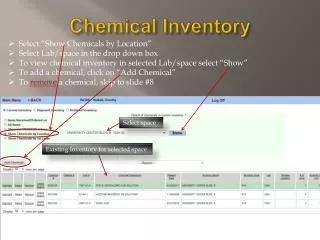
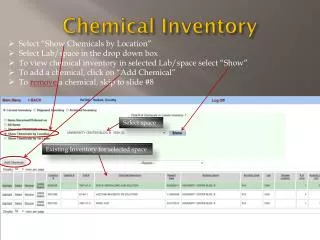
Chemical inventory overview • Default view shows you: • Chemicals in inventory • Total number of chemicals • Whether chemicals are shared • Option to view shared chemicals within your department and within the entire university
How to add chemicals to inventory • Required fields are shown in red • Lave the “search catalog” radio button highlighted and type in either the “Search by CAS#” or “Search by Chemical Description” field • “Inventory #” will auto populate • Enter the number of containers, amount per container, and select unit measurement • Physical state will auto populate based on unit • Click on “lab” to select the lab space where the item is stored • Type in the storage location (e.g., acid cabinet) where the chemical is stored • Optional to add supplemental, vendor, and contact info
What if the chemical is not in the catalog? • Select the “Not In Catalog” radio button at the top of the screen • This unlocks the “Chemical Name” field and you can manually enter the chemical’s name • Proceed to fill out the required fields as previously described
What if you get stuck? • Call (x40345) or email EHS chemical.inventory@ucdenver.eduand we’ll walk you through it!