
Simulating Verilog Code with VCS: A Step-by-Step Guide
This guide provides a comprehensive overview of how to simulate Verilog code using the VCS tool. It covers downloading and unzipping the Calc1 code, navigating the directory, and understanding key Verilog files such as `calc1_top.v` and `testbench.v`. Learn how to run VCS, open the waveform window, select and drag signals for display, and execute simulations. By following this tutorial, you'll gain insights into waveform results and techniques to analyze simulation outputs effectively.

Simulating Verilog Code with VCS: A Step-by-Step Guide
E N D
Presentation Transcript
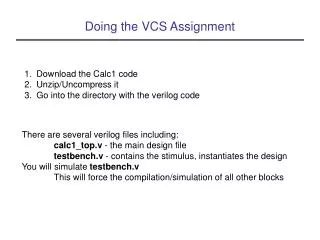
Doing the VCS Assignment Download the Calc1 code Unzip/Uncompress it Go into the directory with the verilog code There are several verilog files including: calc1_top.v - the main design file testbench.v - contains the stimulus, instantiates the design You will simulate testbench.v This will force the compilation/simulation of all other blocks
Running VCS • Type vcs -RI testbench.v • The Interactive Window appears
Waveform Window • Open the Waveform Window • Need to select the signals you want to see, use Hierarchy Window
Hierarchy Window • Select the bigtest module to see its signals • Drag-and-drop the signals into the Waveform Window
Waveform Window with Signals • The signals are on display, but they are blank
Execute Simulation • Simulate by selecting Continue • Printed results are shown in top pane
Waveforms Results • Waveform Window is updated with results • Zoom out and scroll over time










![Veritas VCS-275 VCS Practice Questions [2019 Updated]](https://cdn4.slideserve.com/8135997/vcs-vcs-275-dt.jpg)