Exporting Data from Enquiry to Excel: Step-by-Step Guide
This guide explains how to transfer inquiry results into Microsoft Excel. You can easily copy the results using the download options in the inquiry screen, either to the clipboard, to a specified file, or directly to an Excel file. You can select where to open the data and ensure that specific cell values are downloaded correctly. The guide also covers how to focus the extracted data in your Excel sheets, including preserving cell formatting and using headers. Find tips on downloading data efficiently and the functionality of commands.

Exporting Data from Enquiry to Excel: Step-by-Step Guide
E N D
Presentation Transcript
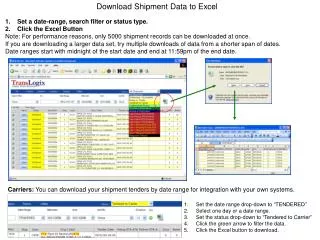
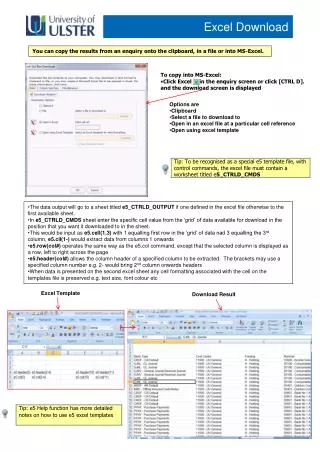
Excel Download You can copy the results from an enquiry onto the clipboard, in a file or into MS-Excel. • To copy into MS-Excel: • Click Excel in the enquiry screen or click [CTRL D]. and the download screen is displayed • Options are • Clipboard • Select a file to download to • Open in an excel file at a particular cell reference • Open using excel template • The data output will go to a sheet titled e5_CTRLD_OUTPUT if one defined in the excel file otherwise to the first available sheet. • In e5_CTRLD_CMDS sheet enter the specific cell value from the ‘grid’ of data available for download in the position that you want it downloaded to in the sheet. • This would be input as e5.cell(1,3) with 1 equalling first row in the ‘grid’ of data nad 3 equalling the 3rd column, e5.cil(1-) would extract data from columns 1 onwards • e5.row(col#) operates the same way as the e5.col command, except that the selected column is displayed as a row, left to right across the page • e5.header(col#) allows the column header of a specified column to be extracted. The brackets may use a specified column number e.g. 2- would bring 2nd column onwards headers • When data is presented on the second excel sheet any cell formatting associated with the cell on the templates file is preserved e.g. text size, font colour etc Excel Template Download Result