0 likes | 1 Views
Troubleshoot HP laptop touchpad issues with these simple fixes. Get your touchpad working again and improve productivity on the go. Explore HP support resources to resolve common touchpad problems.
E N D
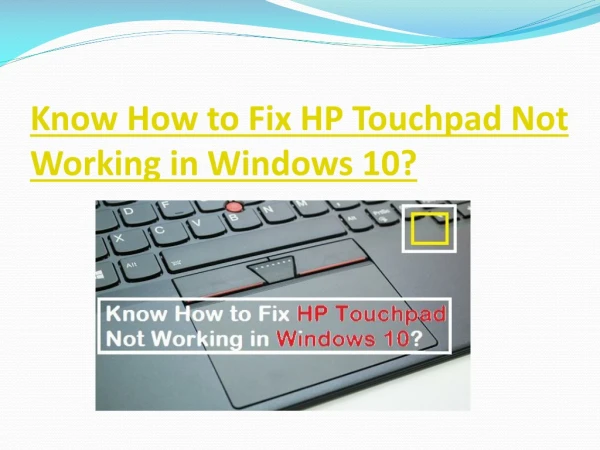
How to Fix HP Laptop Touchpad Not Working Issue? Resolve HP Laptop Touchpad Issue When your HP laptop touchpad stops working, it can be very frustratjng. However, you can fjx HP laptop touchpad not working issue quickly and simply! Incompatjble, outdated, or corrupted touchpad drivers, corrupt system fjles, physically disabled touchpad; incorrect confjguratjon, etc. are some of the common causes of this issue. How to Fix the Touchpad Not Working Issue on an HP Laptop Is your HP Laptop Frozen? Your laptop may be locked up if the HP Laptop Touchpad stops working. In this case, the touchpad and keyboard will not functjon at all. 1. To verify this, open the Security panel by pressing the Windows key and then Ctrl + Alt + Delete. 2. Wait and observe what your computer is processing if nothing changes. 3. Press and hold the Power butuon to switch ofg your HP laptop if it's stjll frozen afuer a few minutes. 4. Turn on your HP laptop to diagnose the problem. Enabling the HP Laptop's Touchpad Service If the touchpad on your HP laptop is deactjvated, it may also stop functjoning. Thus, simply turning on the touchpad on your HP laptop, you can inspect and repair it. Touchpad can be enabled by clicking the dot in the upper lefu corner. Double tapping on the dot, which is ofuen located in the upper lefu corner of the touchpad window, will actjvate the touchpad. Enable the Touchpad via Settjngs ● On the keyboard, simultaneously press the Window and X keys. ● Upon receiving a pop-up menu prompt, select the Settjngs optjon. ● Navigate to the Devices area. ● Select Additjonal mouse settjngs afuer selectjng Mouse & touchpad. ● Choose the Device Settjngs, Hardware, or Touchpad tab and turn on the Touchpad. ● Check the touchpad afuer restartjng your HP laptop.
Updatjng HP Laptop Touchpad Driver The incompatjbility, outdatedness, or corruptjon of drivers can cause the HP laptop's touchpad to stop functjoning. To resolve this problem, you can upgrade the touchpad on your HP laptop. ● Go to the HP website and get the most recent touchpad driver based on the model number of your HP laptop. ● Find the touchpad driver package that you downloaded ● Double-click it, and if prompted, select the Run optjon. ● Use your HP laptop's on-screen directjons to install the driver package. How to Troubleshoot Hardware Issues If the HP Laptop Touchpad is stjll not working, use the troubleshootjng tool to instantly resolve hardware issues. ● Click the Start butuon. ● Go to the Troubleshootjng area of the Control Panel afuer opening it. ● Click the Hardware and Sound optjon. ● Choose the Device and Hardware. ● Click the Next butuon and give the troubleshootjng procedure some tjme to fjnish. ● To resolve the issues found, adhere to the on-screen directjons. ● Try using the touchpad on your HP laptop afuer restartjng it. Hopefully, the preceding methods will enable you to resolve the issue of your HP laptop's touchpad not working. If you need assistance addressing the HP Laptop Touchpad Not Responding Issue, please contact our team of qualifjed and experienced technicians for assistance. Visit : htups://www.printerhelp247.com/blog/how-to-fjx-hp-laptop-touchpad-not-working- issue.php