
Uploaded by
parson
3 SLIDES
193 VIEWS
30LIKES
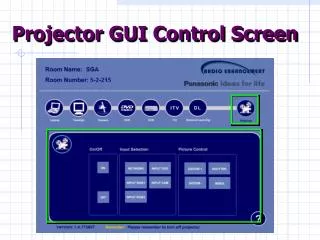
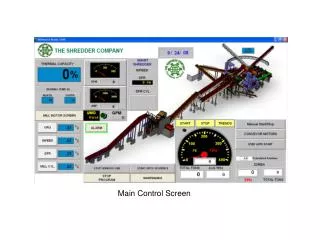
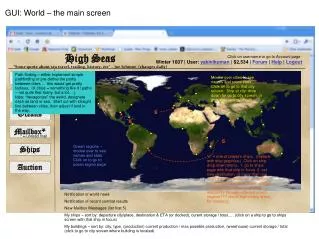
Projector GUI Control Screen
DESCRIPTION
This guide covers the essential features and functionalities of the Panasonic PT-LB51NTU projector remote control. Learn how to effectively use key functions like Power, Auto Setup, Direct Input Select, Freeze, Shutter, Volume Control, and how they compare with the top panel controls of the Panasonic data projector. Enhance your presentation experience by mastering these controls and ensuring seamless operation during your crucial moments.
Download
1 / 3
Download Presentation 
Projector GUI Control Screen
An Image/Link below is provided (as is) to download presentation
Download Policy: Content on the Website is provided to you AS IS for your information and personal use and may not be sold / licensed / shared on other websites without getting consent from its author.
Content is provided to you AS IS for your information and personal use only.
Download presentation by click this link.
While downloading, if for some reason you are not able to download a presentation, the publisher may have deleted the file from their server.
During download, if you can't get a presentation, the file might be deleted by the publisher.
E N D
Presentation Transcript
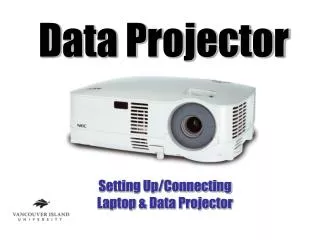
Panasonic Data Projector Remote for Model PTLB51NTU 1. Power 2. Auto Setup 3. Direct Input Select 4. Freeze 5. Shutter 6. Volume Control
Panasonic Data Projector Top Panel Controls Power Focus



More Related

Audio
Live Player