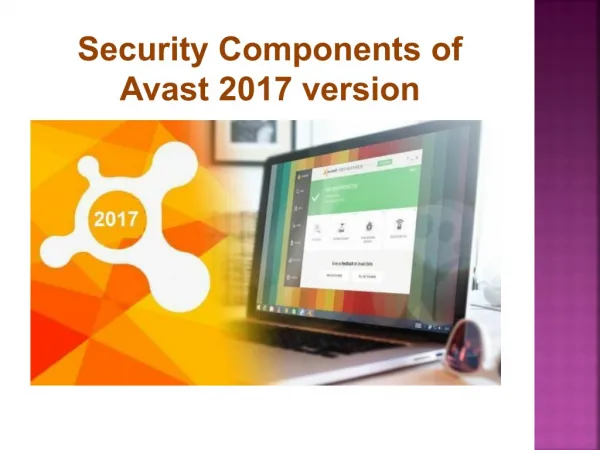
Components of WS Security
460 likes | 616 Views
Components of WS Security. Security Policies and Procedures A well patched system Passwords Users, permissions and file systems Services Malware protection Information assurance. Security Policies. Complete Current Procedures also Must be enforced or they are useless.


Components of WS Security
E N D
Presentation Transcript
Components of WS Security • Security Policies and Procedures • A well patched system • Passwords • Users, permissions and file systems • Services • Malware protection • Information assurance
Security Policies • Complete • Current • Procedures also • Must be enforced or they are useless
Keep the system current • Patch the OS • Turn on automatic updates • Microsoft does the rest • Just trust them with my machine? • They are only upgrading! • Patch all of the apps • TEST, TEST, TEST
Applications and Services • General • Only applications necessary for job • Only approved applications • NO unapproved applications • Keep applications up to date • Configuration according to procedures and permission • Client or Server
File System Permissions • Directories • Data • Home • Shared • Cloud • System • Application • Permissions • Read, Write, Delete, Execute
Malware Protection • Anti-Virus software • Auto updates • Robust package • Ingress and egress filtering • Current license
Users • Groups and users • Rights/permissions • Access level • Directory access
Accounts • Uniform rules to establish an account • Belongs to only the groups necessary • Signed approval • Usually only in one workgroup
Passwords • Length • At least 8 characters • Upper & lower case, numeric & non • Hints – geometric patterns, equations, code • Lifetime • Max - 30 – 60 days • Min – at least one day • History – 10 – 20 changes • Authority
Password Use • Require authentication at login • Require re-authentication after Idle periods • Deny login after n attempts
Password Policy • Complexity • Age – min & max • History • Length
Workstation Security Tools • Windows Security Tools • MMC • Security Configuration & Analysis Snap-in • secpol.msc http://csrc.nist.gov/itsec/download_WinXP.html Windows Vista Security Guide Windows XP Security Guide.
A GUI way to do it • Microsoft Management Console • Permits “Snap-in”s for various system management functions • Security configuration and analysis is one • Accessed via the “run” option or a command line prompt
Security Templates Tool • MMC Snap-in • Creates security templates • Imports security templates • Modifies security templates
Get the Security Templates • Go Windows Vista Security Guide • Scroll dow to the down load button • Retreive the .msi file • Double click on the downloaded file • Follow your nose • Make a note where it put the templates
Security Templates Location XP Vista Windows 7
mmc Console • A GUI snap-in for the mmc • Microsoft Management Console • Windows-r -> Run... typemmcclick OK • Select File > Add/Remove Snap-in • Click Add.. • Select Security Templates • Right click on security and select path to templates • Click Add, Close, OK • File -> Save As • Name the Console Sec_I_Console.msc • Save
Select Path to Templates Right click on Security Templates
Save it! ->File -> Save As
Check it out (MS) • Run mmc • Open your previous Security Console • File -> open -> Sec_I_Console.msc • Open Security Templates • Open VSG EC Domain • Open Account Policies • Open Password Policy • Check it out
Check it out (NIST) • Run mmc • Open your previous Security Console • File -> open -> Sec_I_Console.msc • Open Security Templates • Open VSG EC Domian • Open Account Policies • Open Password Policy • Check it out
Adjust settings • Choose the template that you wish to adjust • Adjust settings to comply with policy • Right click on template name • Choose Save As(different)
Security Configuration &Analysis • A GUI snap-in for the MMC • Microsoft Management Console • Programs -> Run...typemmcclick OK • Select File > Add Remove Snap-in • ClickAdd.. • Select Security Configuration and Analysis • Click Add, Close, OK • File -> Save in Administrative Tools
Create a Security SettingsDatabase • Right click Security Configuration and Analysis • SelectOpen Database • Type in a file name to create a new database
Analyze • Compare current security settings to settings saved in the data base • Right click onSecurity Configuration and Analysis • SelectAnalyze Computer Now • Save log somewhere you can remember • Take a look at the log
Configure Security Settings • Right click on Security Configuration and Analysis • Select Configure Computer Now • CAUTION: • It is all over • Make sure your password satisfies the policy • Etc., etc., etc., etc., etc.
Security Settings • You can have many templates • You can create your own • You can merge templates • You will have to reinstall Windows many times before you get it right • Develop your template on a test bench • Test, test, test!
Lab • Do what we just did • Comment on the settings of the workstation • Start with the Default Settings • Change some of the settings • Configure the workstation • Analyze again • How are you doing? • Show some work
Assignment • Write a password policy • Implement this password policy • List the procedure, i.e. list the settings for the mmc • Test it.