Creating a Simple Menu Application in Visual Basic
This guide details the steps to create a simple Visual Basic application named "menuExample." You will learn how to add a MenuStrip control, customize its properties, and implement functionality for changing the form's background color using menu items. The application includes options for blue and red backgrounds, as well as an exit function. Follow along by saving your work in the specified folder as directed by your teacher and ensure your final form matches the provided image.

Creating a Simple Menu Application in Visual Basic
E N D
Presentation Transcript
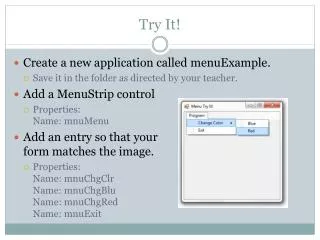
Try It! • Create a new application called menuExample. • Save it in the folder as directed by your teacher. • Add a MenuStrip control • Properties:Name: mnuMenu • Add an entry so that your form matches the image. • Properties:Name: mnuChgClrName: mnuChgBluName: mnuChgRedName: mnuExit
Try It! Solution – Visual Basic Public Class Form1 Private Sub ExitToolStripMenuItem_Click(ByVal sender As System.Object, ByVal e As System.EventArgs) Handles ExitToolStripMenuItem.Click Application.Exit() End Sub Private Sub BlueToolStripMenuItem_Click(ByVal sender As System.Object, ByVal e As System.EventArgs) Handles BlueToolStripMenuItem.Click Me.BackColor = Color.Blue End Sub Private Sub RedToolStripMenuItem_Click(ByVal sender As System.Object, ByVal e As System.EventArgs) Handles RedToolStripMenuItem.Click Me.BackColor = Color.Red End Sub End Class