Download
1 / 11
110 likes | 238 Views
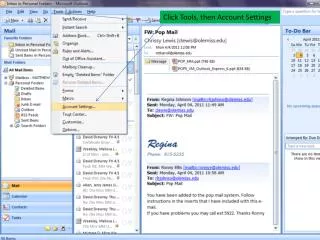
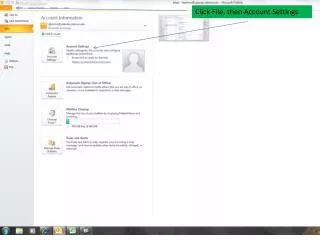
This guide will help you manually set up your email account in Outlook, using Microsoft Exchange, POP3, IMAP, or HTTP. Start by navigating to Account Settings and selecting 'New'. Choose your account type and enter your name, email address, and server information, including your 4-digit phone extension and voicemail password. After configuring, test the account settings to ensure everything is correct. Successful tests will display check marks and deliver a test email to your inbox. If unsuccessful, double-check user and server information.

E N D
Enter your name & E-mail address Choose POP3 Enter Incoming & Outgoing mail server Enter your 4 digit phone extension Enter your voicemail password
If tests are successful, you will see check marks and receive a test email in your Inbox. Click Close to continue. If the Test fails, verify User & Server info are correct.