Introduction to Visual Basic for Applications (VBA) in Excel: A Guide to Object-Oriented Programming
Visual Basic for Applications (VBA) is an object-oriented programming language for Excel that allows users to automate tasks and manipulate various objects like workbooks, charts, and ranges of cells efficiently. Through well-structured commands, users can control properties and perform actions on these objects. This guide covers essential VBA concepts, including procedures, functions, and subroutines, along with practical examples, such as customizing cell formatting and running macros. Learn how to debug your code and enhance your Excel experience using VBA.

Introduction to Visual Basic for Applications (VBA) in Excel: A Guide to Object-Oriented Programming
E N D
Presentation Transcript
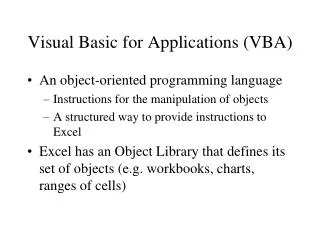
Visual Basic for Applications (VBA) • An object-oriented programming language • Instructions for the manipulation of objects • A structured way to provide instructions to Excel • Excel has an Object Library that defines its set of objects (e.g. workbooks, charts, ranges of cells)
Logic of Language • First part of a command identifies the object • Second part of command: • Sets a property of the object (e.g. color or font) • Takes an action on the object (e.g.copy or move) • Sets an attribute to the object (e.g. assigns a value to it using := )
Example of an Instruction • Application.Workbooks(“Book1.xls”).Worksheets(“Sheet1”).Range(“A1”).Font.Name=“Arial” • Application.Workbooks(“Book1.xls”).Worksheets(“Sheet1”).Range(“A1”) is the object • Font.Name=“Arial” is the property being set
Control of VBA • A Procedure is a set of instructions that operate on a set of objects • A Function is a procedure that returns a value as a result • A Subroutine is a procedure that can be run or used by another macro
BlueCell Macro • Sub bluecell() • ' • ' bluecell Macro • ' Macro recorded 10/12/2002 by LMU LMU • ' • ' • With Selection.Interior • .ColorIndex = 8 • .Pattern = xlSolid • .PatternColorIndex = xlAutomatic • End With • End Sub
Running Macros • Run Macro option • Shortcut Keys: [Ctrl][Shift] letter • Command Buttons • Custom Toolbar
Running Solver through a Macro • Solver dialog box must have been opened at least once in current Excel session (i.e. Solver must be currently activated in Excel) • SolverSolve UserFinish:=True • Tools Reference option in VBA must have Solver selected
Debugging VBA Code • When VBA encounters a problem, it will highlight line in yellow. • Use [f8] key to step through code • Use the Reset icon button (square) at top of VBA to exit step-through mode and trouble- shoot code or Excel/VBA settings. Cannot retry macro until yellow highlight is gone.