Download
1 / 7
80 likes | 190 Views
Learn how to create and manage shortcuts on your Windows desktop for easy access to important links and files. This guide covers key concepts including the taskbar, quick launch bar, system tray, and the process of creating shortcuts. You'll discover how to copy paths and URLs, create desktop icons, and use mouse clicks and keyboard shortcuts for efficient navigation. Perfect for anyone looking to enhance their productivity and streamline access to essential resources like your Division website or eDirectory.

E N D
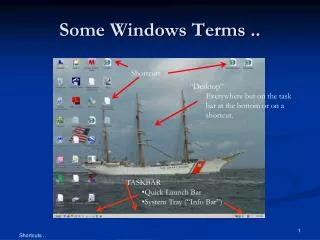
Some Windows Terms .. Shortcuts • “Desktop” • Everywhere but on the task bar at the bottom or on a shortcut. • TASKBAR • Quick Launch Bar • System Tray (“Info Bar”)
Create Windows Shortcuts • Background • Mouseclicks • Desktop • Links/Paths/URL/Addresses • Find a target Link (eg. eDirectory, Division WWW) • Copy the path • Paste the path to the Desktop: a new Shortcut
Mouse Clicks • LeftClicks Select Run Highlight (drag vertical bar over text) • RightClicks • Bring up Menus • [Ctrl][C] copies marked text • [Ctrl][P] pastes copied text
Shortcuts • Are Icons on Desktop with a link • To create a shortcut: • RightClick on Desktop • Menu appears • Select “New” and “Shortcut” • Shortcut created • Any copied Link/Path/Address • To rename a shortcut • {RightClick} shortcut {Properties}{General}
Links/Paths/URL • URLs are internet addresses • http://www.a05410.uscgaux/info • Division WWW Site • Link is just a URL • Path is the location of a folder or file locally • “c:\auxiliary\TMR\divisiontmr.pdf” • Location on a local hard drive for a file
Examples Create 3 Shortcuts for the links below by selecting (marking the text) with the left mouse, RightClick and select {Copy} then RightClick on your desktop and select {Paste} to create shortcuts for these three examples • Division 10 WWW Site • http://a05410.uscgaux.info/ • eDirectory • http://www.auxedirectory.org/ • Officer/Member SignIn • https://auxofficer.cgaux.org/auxoff/signin3.php
Or .. Go to the Division site and click the links there ..