Remote Access to Library Databases for Students and Staff
This guide provides step-by-step instructions on how to access library databases remotely. To begin, click on Library Services and identify yourself as a student or staff member by entering your ID and password. Once authenticated, you can search for e-resources. The process involves selecting a desired database and starting your search for the materials you need. For any assistance, the library staff is available to help. This resource was created by Marion Davids and last updated on March 18, 2009.

Remote Access to Library Databases for Students and Staff
E N D
Presentation Transcript
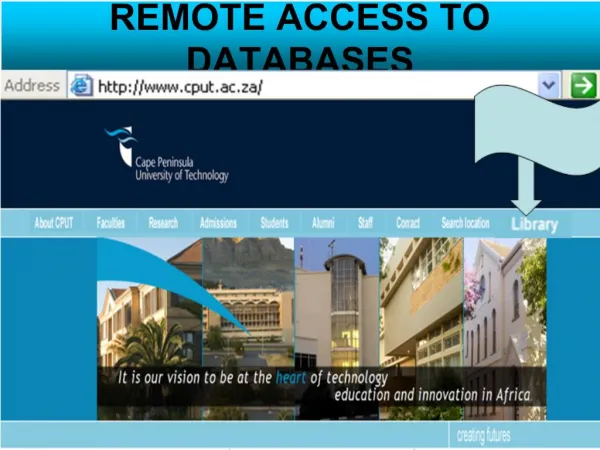
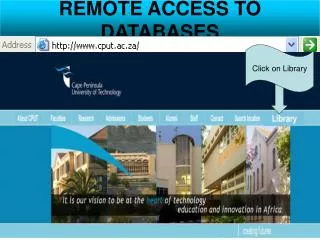
REMOTE ACCESS TO DATABASES Click on Library
LIBRARY SERVICES Click on
IDENTIFY YOURSELF STUDENT / STAFF NO. FIRST SIX DIGITS OF ID / PASSWORD
START SEARCHING Click to select e-resources Need assistance?
SELECT A DATABASE Click on the desired database you wish to search and start searching
Created and designed by: Marion Davids Date: 6 September 2005 Updated: 18 March 2009