Download
1 / 29
290 likes | 409 Views
This comprehensive guide covers the essential aspects of using RefWorks, an online research management tool. Learn how to create an account, log in, set up folders, and import references seamlessly from Google Scholar. Discover tips on managing your references effectively and exporting your bibliography in various formats, including APA and MLA. With clear instructions and user-friendly navigation, this resource will empower you to organize your research efficiently and enhance your academic writing. ###

E N D
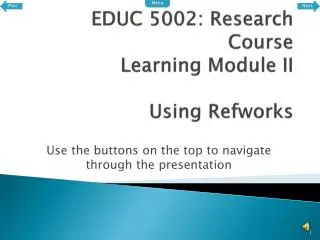
Prev Menu Next EDUC 5002: Research CourseLearning Module IIUsing Refworks Use the buttons on the top to navigate through the presentation
Module Menu Use the following menu to go to a specific section of the presentation. • What is Refworks • Accessing Refworks • Creating an Account • Logging into Refworks • Setting Up Folders • Importing References from Google Scholar • Exporting Bibliography
Menu What is Refworks • Online research management tool • Keeps track of all your references • Allows for easy searching of references • Allows for easy exporting of bibliographic information • Many output formats (APA, MLA, custom)
Menu Next Accessing Refworks Go to the UOIT library website: www.uoit.ca/library
Prev Menu Next Accessing Refworks Click here
Prev Menu Next Accessing Refworks Type in your network login name and password. Go to the UOIT library website: www.uoit.ca/library
Prev Menu Accessing Refworks
Menu Next Creating an Account • Access the login page of Refworks.
Prev Menu Next Creating an Account Click Here
Prev Menu Next Creating an Account • Type in your information Use your UOIT email address When filled out, press Register
Prev Menu Creating an Account
Menu Logging into Refworks • Log into Refworks by typing in your username and password on the main login page.
Menu Next Setting up Folders • Log into Refworks • Select Folders->Create New Folder
Prev Menu Next Setting up Folders • Enter a name for your folder Click OK when done
Prev Menu Setting up Folders • Your folder is now created
Menu Next Importing References from Google Scholar • Google scholar is an extremely useful database of scholarly works which makes it incredibly easy to gather reference material. Go to the UOIT library website: www.uoit.ca/library
Prev Menu Next Importing References from Google Scholar Click here
Prev Menu Next Importing References from Google Scholar • Scroll down to Google Scholar Click here
Prev Menu Next Importing References from Google Scholar • Type in your network login information and press Submit. Click here
Prev Menu Next Importing References from Google Scholar • You should now be on the Google Scholar web page Click Scholar Preferences
Prev Menu Next Importing References from Google Scholar • Scroll to the bottom of the page 2. Set this to RefWorks 1. Click Here 3. Click Save Preferences
Prev Menu Next Importing References from Google Scholar • Type in the name of the journal/book you want to add to RefWorks and press Search • Use quotes “ ” if you know the exact title
Prev Menu Next Importing References from Google Scholar • Find the article/book that you are looking for • If you typed in the exact title, it should be at the top of the list. Click here to Import into RefWorks
Prev Menu Next Importing References from Google Scholar • Another windows/tab should open up and will ask you to log into RefWorks. • Type in your Log-in name and Password
Prev Menu Next Importing References from Google Scholar • All the information should be automatically inserted for you. • Double check to make sure all the relevant information is in there and is correct • Select the folder you want to store the reference in. • Press Save Reference Select the folder you want to place the reference in.
Prev Menu Importing References from Google Scholar • It should tell you your reference has been saved. Select the folder you want to place the reference in.
Menu Next Exporting Bibliography • To export your references, click on the bibliography button
Prev Menu Next Exporting Bibliography • Select the options you want Select APA for the Output Style Select Word for Windows for the file type. Select the folder you want to create a bibliography for Click here when done
Prev Menu Exporting Bibliography • RefWorks will create a Word Document with all your references in it. Click here to download the word document