Easy Tkinter Programming Guide for GUI Applications
Learn how to create GUI applications using Tkinter in Python. This tutorial covers Tkinter widgets, attributes, widgets management, and canvas for graphical interfaces. Get started with Tkinter now!

Easy Tkinter Programming Guide for GUI Applications
E N D
Presentation Transcript
Recommended Version: 2.7 or latest • Source : http://www.tutorialspoint.com/python/python_gui_programming.htm
Tkinter: Tkinter is the Python interface to the Tk GUI toolkit shipped with Python. We would look this option in this chapter. • wxPython: This is an open-source Python interface for wxWindows • JPython: JPython is a Python port for Java which gives Python scripts seamless access to Java class libraries on the local machine
Tkinter Programming • Tkinteris the standard GUI library for Python. Python when combined with Tkinter provides a fast and easy way to create GUI applications. Tkinter provides a powerful object-oriented interface to the Tk GUI toolkit. • Creating a GUI application using Tkinter is an easy task. All you need to do is perform the following steps − • Import the Tkinter module. • Create the GUI application main window. • Add one or more of the above-mentioned widgets to the GUI application. • Enter the main event loop to take action against each event triggered by the user.
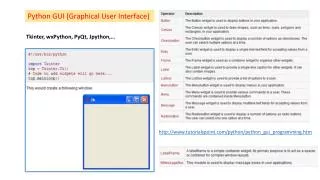
Tkinter Widgets • Tkinter provides various controls, such as buttons, labels and text boxes used in a GUI application. These controls are commonly called widgets. • There are currently 15 types of widgets in Tkinter. We present these widgets as well as a brief description in the following table −
Standard attributes • Let us take a look at how some of their common attributes.such as sizes, colors and fonts are specified. • Dimensions • Colors • Fonts • Anchors • Relief styles • Bitmaps • Cursors
Geometry Management • All Tkinter widgets have access to specific geometry management methods, which have the purpose of organizing widgets throughout the parent widget area. Tkinter exposes the following geometry manager classes: pack, grid, and place. • The pack() Method - This geometry manager organizes widgets in blocks before placing them in the parent widget. • The grid() Method - This geometry manager organizes widgets in a table-like structure in the parent widget. • The place() Method -This geometry manager organizes widgets by placing them in a specific position in the parent widget.
Button • Program2
Canvas • The Canvas is a rectangular area intended for drawing pictures or other complex layouts. You can place graphics, text, widgets or frames on a Canvas. • program3
Entry • program4
Frame • program5
Listbox • Program6
Radiobutton • program7
Menubutton • program8
Check button program9
Bring Image # Putting a gif image on a canvas with Tkinter from Tkinter import * root=Tk() # create the canvas, size in pixels canvas = Canvas(width = 300, height = 200, bg = 'yellow') # pack the canvas into a frame/form canvas.pack(expand = YES, fill = BOTH) # load the .gif image file # put in your own gif file here, may need to add full path gif1 = PhotoImage(file = 'dw.gif') # put gif image on canvas # pic's upper left corner (NW) on the canvas is at x=50 y=10 canvas.create_image(50, 10, image = gif1, anchor = NW) # run it ... root.mainloop() Program