How to Reset HP Printer
0 likes | 4 Views
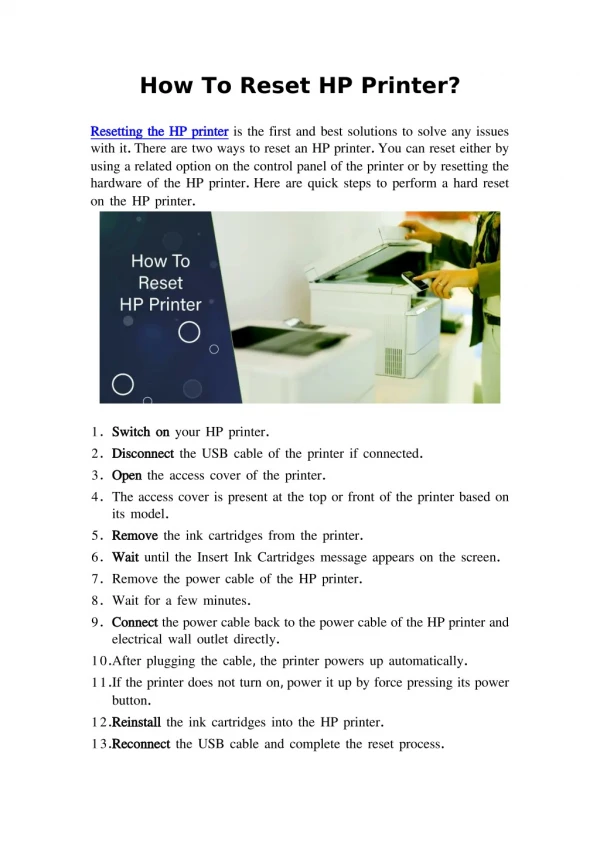
Resetting an Hp Printer Setup can resolve various issues like connectivity errors, paper jams, and unresponsive functions. There are multiple reset methods, including a soft reset (power cycling), hard reset (restoring factory settings), and network reset (fixing Wi-Fi issues). Users can reset their printer through the control panel, HP Smart app, or by manually unplugging the power cord. After resetting, itu2019s essential to reconnect the printer to Wi-Fi and reinstall drivers if needed. If issues persist, checking for firmware updates or contacting HP Support can help.


How to Reset HP Printer
E N D
Presentation Transcript
How to Reset HP Printer? A Step-by-Step Guide
HP printers may need a reset to fix errors, connectivity issues, or performance problems. • This guide covers different reset methods for HP printers. Introduction
When to Reset an HP Printer? • Printer not responding • Frequent paper jams • Ink or toner detection issues • Wi-Fi or network connection problems • Error messages on the display
Types of Resets • Soft Reset – Quick restart to refresh the system • Hard Reset – Restores factory settings • Network Reset – Fixes Wi-Fi and connectivity issues • Partial Reset – Clears some stored settings • Full Reset – Erases all settings and restores defaults Add a footer
Turn off the printer and unplug it. • Wait for 30-60 seconds. • Plug it back in and turn it on. • Check if the issue is resolved. How to Perform a Soft Reset? Add a footer
How to Perform a Hard Reset? • Press and hold the Power button. • Disconnect the power cord while holding the button. • Wait for 30 seconds. • Reconnect the power cord and turn the printer on. Add a footer
On the printer control panel, go to Settings. • Select Network Setup > Restore Network Settings. • Confirm the reset and reconnect to Wi-Fi. How to Reset Network Settings? Add a footer
How to Perform a Factory Reset? • Go to Settings > Printer Maintenance > Restore Defaults. • Select Restore Factory Defaults. • The printer will restart with default settings. Add a footer
Open the HP Smart App on your computer or phone. • Go to Printer Settings. • Select Reset Printer and follow the on-screen instructions. Resetting HP Printer via HP Smart App Add a footer
Troubleshooting After Reset • Reconnect the printer to Wi-Fi. • Reinstall printer drivers if needed. • Check for firmware updates via HP Support. • Run HP’s troubleshooting tool if the issue persists. Add a footer
Resetting an HP printer can fix many common issues. • Choose the appropriate reset method based on your problem. • If problems continue, contact HP Support. Conclusion Add a footer
Thank You Gary Frank +1 513-884-9698 garyfrank968@gmail.com 123 hp printer setup